Connect DMU Mail to Claude, from first switch to first prompt
An administrator allows it, you connect it in Claude, and then you can ask about your mail. Claude drafts; you check and send.
DMU Mail team· · 3 min read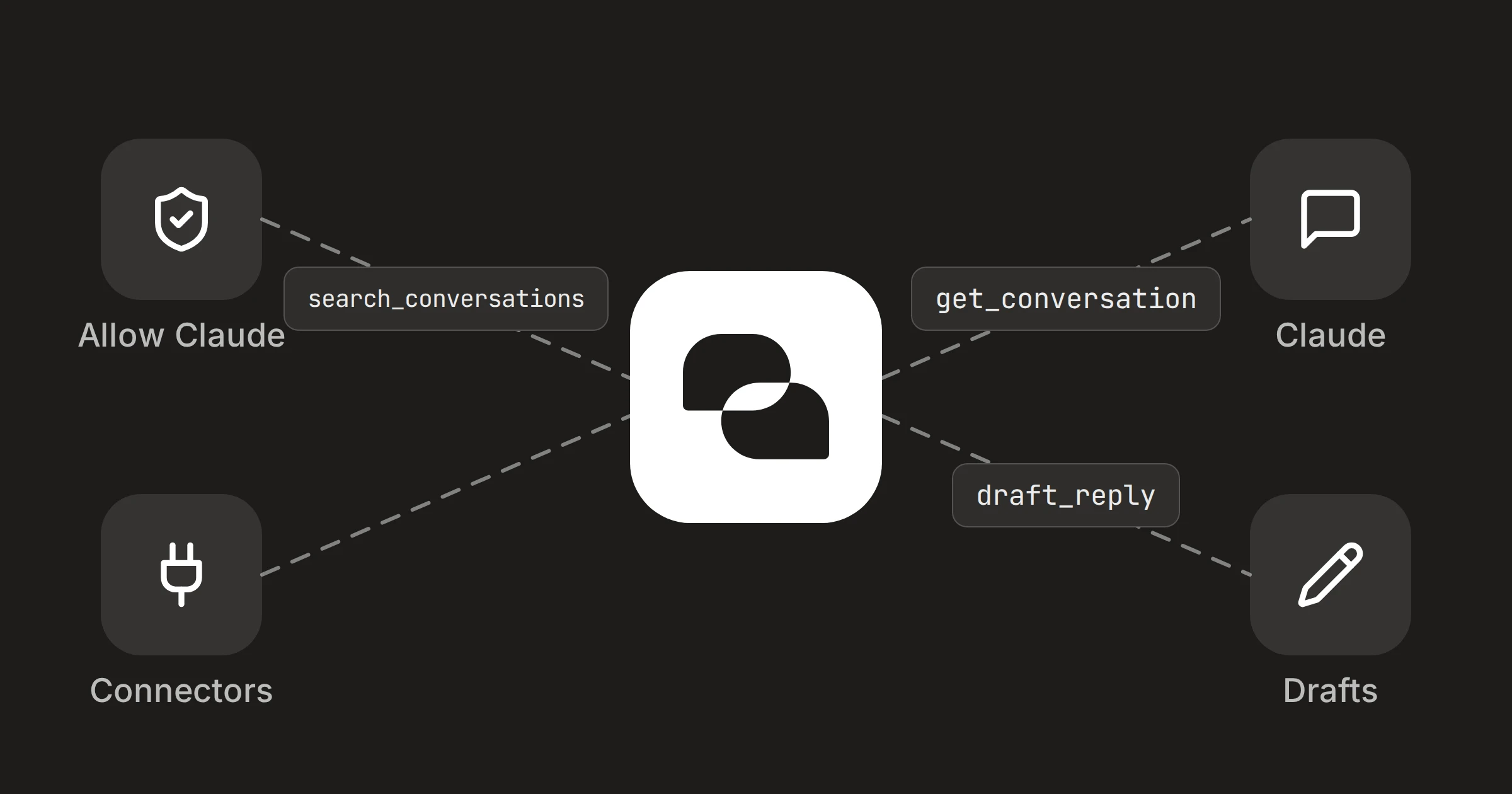
On this page
Once DMU Mail is connected, Claude can search your conversations, read them with their team chat, and write replies for you. It never sends anything. Every reply it writes waits in Drafts until you read it and press Send. This post takes you from the administrator's first switch to a first useful question.
In short
An administrator allows Claude for the organisation. Then each person connects their own Claude.
Connect from Claude's Connectors directory, or add the address
https://mcp.dmu.email/mcpas a custom connector.Claude can read, write drafts and organise. It can never send, forward or delete.
1. An administrator allows it
Claude is off for every organisation until an administrator turns it on. If you are one, open Settings › Organisation › Connected apps and choose Allow Claude.
Then open Settings › Permissions › Apps, where you decide who may connect Claude and who may let it read shared mailboxes. Once Claude is allowed, everyone may connect it, and only administrators may use it with shared mailboxes, unless an administrator changes that. Without that permission, Claude sees only your own mailboxes.
If you are not an administrator and the screen says Claude isn't allowed yet, ask one. Nothing is shared until they allow it.
2. Connect it in Claude
In Claude, open Settings › Connectors, choose Browse, find DMU Mail and choose Connect. The listing is at claude.ai/directory/dmu-mail.
If you can't find it there, choose Add custom connector and enter
https://mcp.dmu.email/mcp.Sign in to DMU Mail if you are asked to.
Choose the organisations Claude may use, and what it may do. Reading is always included. Writing drafts and organising are yours to choose. Then choose Allow.
The connector works in Claude on the web, on the desktop and on your phone, and in Claude Code. The Claude Code post covers the terminal.
3. Ask a first question
Start with something that only reads, so you can see what Claude sees.
Try it in Claude
What is assigned to me in DMU Mail and still open? List each conversation with who wrote last and when.
Needs DMU Mail in Claude.
How to connect itClaude lists your assigned conversations from DMU Mail. Ask it to open one, and it reads the messages and the team chat together. Search is search that speaks your language, so ask in your own words.
What Claude can do, and what it can't
It can:
search conversations and read them, with the team chat and the text of attached documents and spreadsheets;
write a reply or a new email, saved in Drafts and marked "Written with Claude";
assign conversations to people, add or remove labels, close and reopen, snooze, and mark as read or unread.
It can never:
send or forward an email, or add a Bcc;
delete anything, move anything to Trash or Spam, or change anything that is already there;
change settings, people, teams or permissions;
see mail you can't open in DMU Mail.
Check the draft, then send it yourself
Seeing what it did
Everything Claude changes is recorded in Activity and in the conversation's history as "via Claude". A colleague reading a conversation can tell which changes were made with Claude.
Disconnecting
In DMU Mail, open Settings › You › Connected apps and choose Disconnect. Administrators can disconnect anyone in Settings › Organisation › Connected apps, or turn Claude off for everyone. It stops at once.
What goes where
DMU Mail sends nothing to Claude on its own. When you ask Claude about your mail, the conversations it needs are sent to Anthropic to answer you, under your agreement with Anthropic. Your mail stays stored in DMU Mail, in the EU. The full steps are in Use DMU Mail with Claude.
Share