Welcome to DMU Mail
DMU Mail is a shared inbox for your team. Everyone sees who is answering what, so no customer gets two replies and no message is lost.
Updated 25 October 2026 · 3 min read
What DMU Mail is
You connect the addresses your company already uses, such as info@ or accounts@, and DMU Mail brings their mail into one place. Your mail stays with your provider. DMU Mail keeps a synced copy so the whole team can work on it together.
Shared mailboxes are seen by everyone in the organisation, or by the teams and people chosen for them. Private mailboxes are yours alone.
You can assign a conversation to yourself or a colleague, and close it when it is done.
A conversation stays open until someone closes it, so the team can tell what still needs an answer.
Team chat and notes sit under the email. The customer never sees them.
Labels, snooze and search keep a busy inbox in order.
The main screen
The mail screen has three parts, from left to right.
- The sidebar
- Your Private inboxes and the Shared inboxes you can see, each with its unread number, and the views inside them, such as Inbox, Closed and Sent. New message and your searches are here too.
- The list
- Every conversation in the view you chose, newest first. Bold means you haven’t read it yet. The small face beside a conversation shows who it is assigned to.
- The conversation
- The emails in the order they came, with Reply at the bottom. Assigning, closing and the team chat are here too.
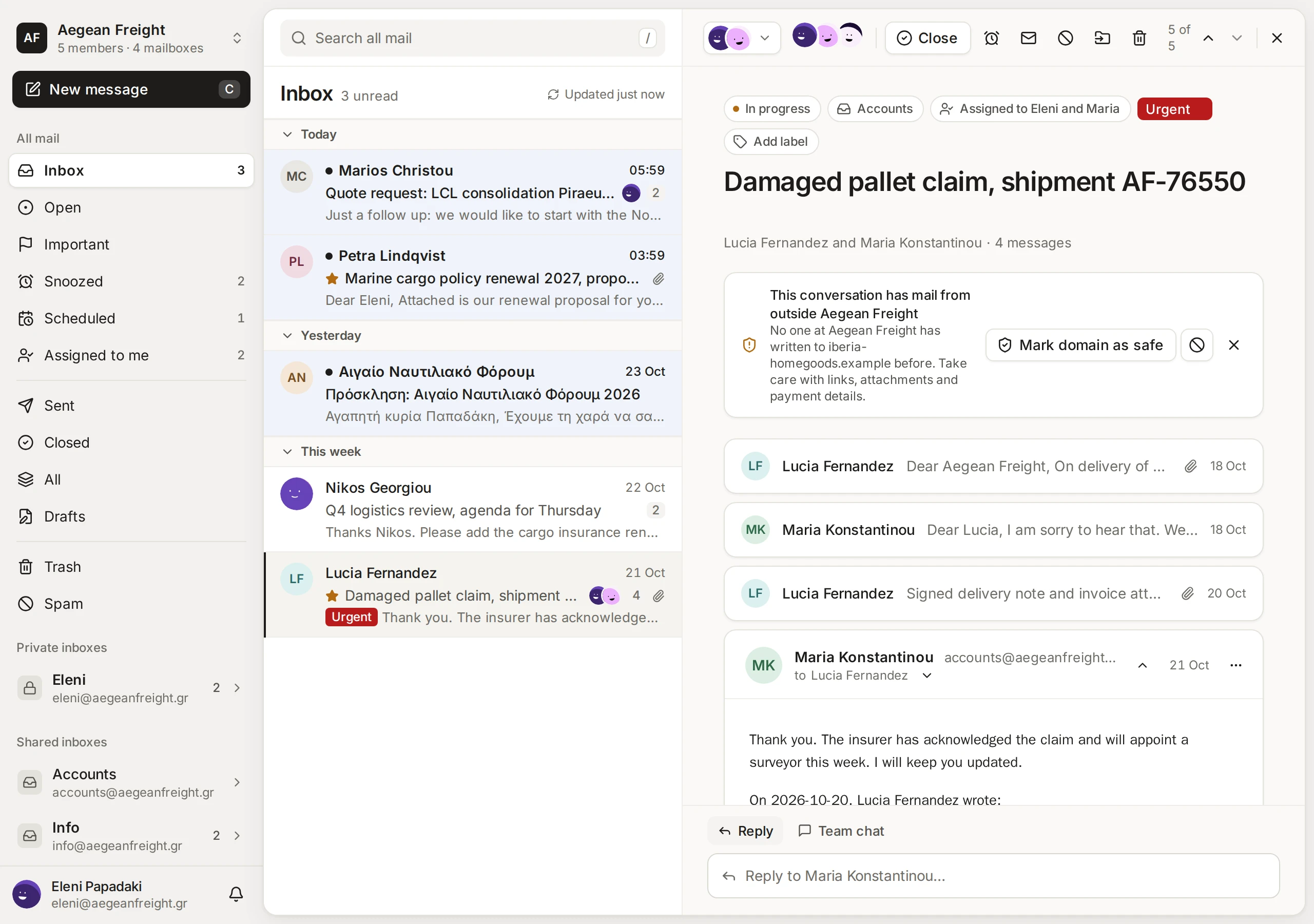
On a phone you see one part at a time: the sidebar opens from the menu, then the list, then the conversation.
Finding your way
Press / from anywhere to search every mailbox you can see.
Press C to write a new message, and ? to see every keyboard shortcut.
Open the menu under your name for Settings, your account and the tour. Choose How DMU Mail works to see the welcome tour again.
Settings has your own preferences. Administrators also see the organisation’s people, teams and mailboxes there.
An organisation has administrators and members. Members read and answer mail. Administrators also connect shared mailboxes and manage people: see People and roles.
Where to go next
Starting from nothing? From the waitlist to your organisation takes you from the first sign-up to a working organisation.
Add your first address with Connect a mailbox, or Connect a Gmail or Microsoft 365 mailbox if your mail is with Google or Microsoft.
Bring your colleagues in with Invite your team.
Learn the daily work in Shared and private inboxes, Assign a conversation and Statuses.
On a Windows PC, Desktop app for Windows adds notifications and an unread count on the taskbar.