Meet the Assistant: your own AI, only when you ask
Connect your own AI account and ask it to write, organise and find your mail. It shows a preview first and never sends.
DMU Mail team· · 4 min read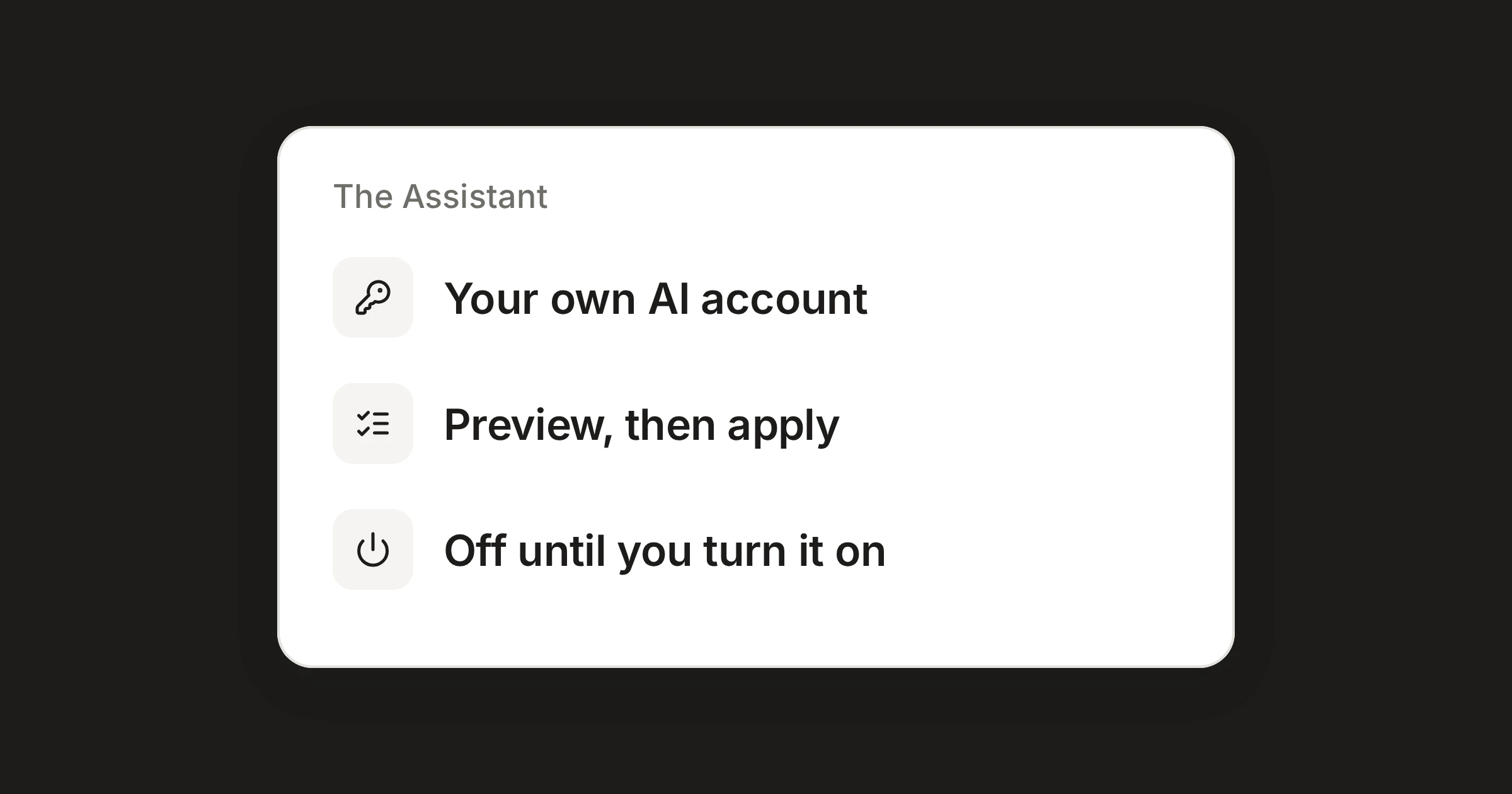
On this page
On 28 October, DMU Mail released the Assistant. You connect your own account at an AI provider, and ask it to write, organise and find your mail. It is built around three promises: it acts only when you ask, it shows you what it would change before it changes anything, and an administrator can switch it off for everyone.
In short
You bring your own AI account. The costs go to that account, and you can set a monthly limit.
It acts only when you ask, or when a routine of yours runs on its schedule.
Everything it proposes is a preview. Nothing changes until you press Apply.
Off until you turn it on
The Assistant has two switches, and both start off. An administrator opens Settings › Organisation › Assistant and turns on Allow the assistant. They also choose which AI providers people may connect, and what the Assistant may read and do. Then each person opens Settings › Assistant and turns on Use the assistant.
While it is off for you, DMU Mail shows no sign of it: no button, no menu items and no shortcut. If an administrator turns it off again, it disappears for everyone at once and routines stop.
Bring your own AI account
The Assistant works with your own account at an AI provider. In Settings › Assistant, choose Connect another provider.
Anthropic (Claude), OpenAI (ChatGPT), Google (Gemini) and Mistral need an API key from your account with them.
Azure OpenAI also needs your Azure resource's endpoint and the names of its deployments.
Another provider can be any service with an OpenAI-compatible address.
Test and connect checks the key before it is saved. You can connect several providers, tick the models you want in the chat box and choose which model new chats start with. A provider can have a monthly limit in US dollars. At the limit, that provider's models pause until the 1st of the month. Your keys are stored encrypted and used only for your requests.
Ask it
Open the Assistant with the button beside your notifications, or press Ctrl J (⌘ J on a Mac). Ask in your own words, and choose what it looks at, such as a mailbox or a period. In a message you are writing, the Assistant button in the toolbar opens a side panel that writes or rewrites it with you.
Some things people ask for:
What needs me today?
I've been away for a few days. Catch me up.
Tidy up my inbox.
Which newsletters do I never read?
Is this email safe?
Did I answer everything?
For a team, the most useful ones are Catch me up, which shows what needs you and what your colleagues handled while you were away, and Is this email safe?, which puts DMU Mail's own checks into plain words, such as an address one letter off or a bank account that changed.
A preview before anything changes
Whatever the Assistant suggests comes first as cards, with a tick on each line. You check the ticks, change them if you want, then press Apply. Nothing changes before that. Some cards start with nothing ticked, such as blocking a sender for everyone.
Everything it applies can be undone, except unsubscribing from a newsletter, which the sender carries out.
Replies are written as drafts. It never sends, forwards or deletes forever, never invites anyone, and never changes settings or permissions on its own.
Every change it makes is recorded in Activity.
Routines
A routine is a request on a schedule, such as a tidy-up every Monday at 08:00. In Settings › Assistant, choose New routine, say what it should do and when, and choose what it looks at and which model runs it. A routine only prepares. When it is ready, a small dot appears on the Assistant button, and its list waits for you to apply it. There is no notification or email.
What it sends, and to whom
Nothing goes to an AI provider until you ask, or a routine of yours runs, and never in the background. Your mail is decrypted to go to the provider you chose for that request, and only what the request needs is sent. Tidying up sends only headers, such as the sender, subject and date. The text of a message goes only to write, summarise or translate it, or to answer a question about it. The Assistant reads private mailboxes only, unless an administrator allows shared mailboxes too.
For administrators
Administrators choose which providers people may connect, which of their models, and what the Assistant may read. Anything you untick disappears from everyone's Assistant. In Settings › Organisation › Assistant you can also see requests, tokens and models for each person. For someone using their own key, no amounts are shown.
Set up with the assistant, in Settings › Teams, asks a few questions and proposes teams, shared mailboxes, permissions, labels and automations as cards, with nothing ticked to begin with. It sees people, mailboxes and teams, never the mail in them.
Learn more
The Assistant has every step. The Assistant feature page says who decides what, and the release is in the changelog. If you use Claude directly, see DMU Mail works with Claude.
Share