Automations are here: rules that run your shared mail
Say when a rule starts, what it checks and what it does, then test it on recent mail before it runs.
DMU Mail team· · 4 min read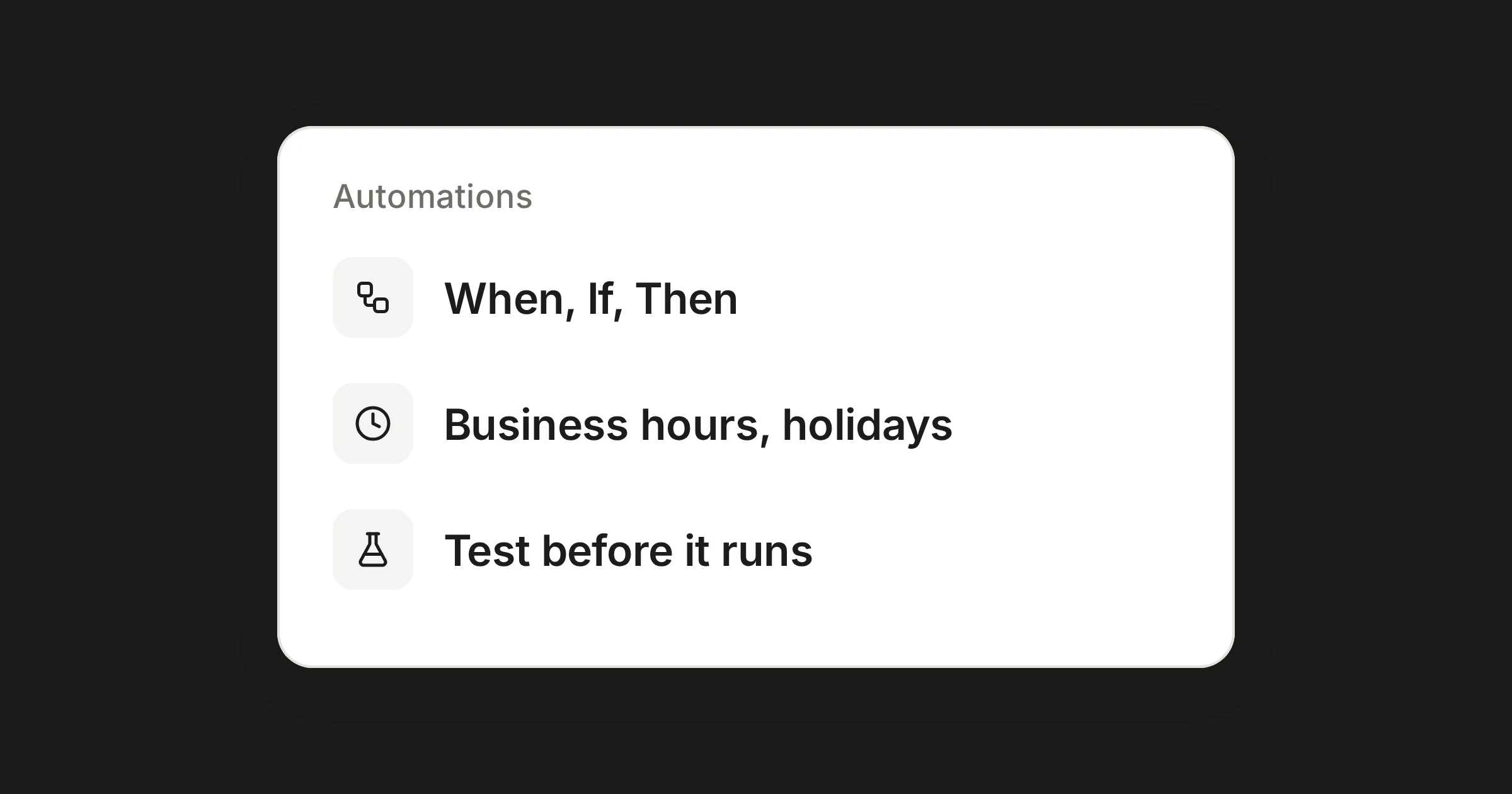
On this page
Shared mail has a routine: sort it, hand it to someone, answer the same question again. On 25 October DMU Mail added automations, rules that do this as mail arrives. On 27 October they grew to do much more.
In short
A rule has a When, an If and a Then, set in Settings › Automations.
Business hours, a time zone and holidays tell a rule in hours from out of hours.
You test a rule on recent mail first, and nothing changes while you do.
When, If and Then
Every rule is built from three parts.
When: what starts it. A message arrives, or a conversation waits for a reply.
If: what it checks. The sender, recipients, subject, message text, attachments, when it arrives, a label, who it is assigned to, or the mailbox.
Then: what it does, in order. Assign the conversation to a person, or take turns in a team. Add labels, close, snooze, move, or send an automatic reply. Remind the team when a customer has waited too long.
Here is a rule for a shared mailbox that is not watched at night.
Reply out of hours
New mail that reaches info@ while the office is closed gets an answer.
- A message arrivesininfo@aegeanfreight.example
- It arrivesoutside business hours
- Reply with a templatea template
Settings, then Automations, then New automation. Administrators only, unless your organisation lets members make them.
For a team, this means a customer who writes on Friday evening hears from you straight away, and the team starts on Monday knowing the reply has gone.
Business hours and holidays
A rule that says "outside business hours" needs to know what yours are. In Settings › Details, an administrator sets the opening hours, the time zone and the closed days, and can add Greek public holidays for the year in one click. Automations then use them for "outside business hours" and for waits counted in working hours.
That second use is the quiet one. A rule can wait four working hours for a reply, skip nights and weekends, and then mark the conversation important and tell the team. The business hours page has the details. Once your hours are saved, reply times in Analytics count open hours only, so mail that arrives on Friday evening and is answered on Monday morning is not counted as two days late.
Test a rule before it runs
You don't have to guess. In the automation, choose Test on recent mail, pick a mailbox and run it. DMU Mail tries the rule on the last 200 conversations of that mailbox and lists the ones that would have matched, with the condition and words that made each one match. It changes nothing.
A rule can't be switched on untested. If you change a rule that is on, it goes off until you test it again. Test a rule explains it. For an automatic reply, the test shows who would get the reply and why others would not, and the reply itself never goes to no-reply addresses or mailing lists. See automatic replies.
What Automations do more added
The 27 October release made an automation able to do anything you can do to a conversation, from assigning and labelling to forwarding it to an address, and to match on more things. For example, an automation can now:
forward invoices to your accountant, an address outside your organisation;
match on the start or end of a subject, part of an address, or a file name or type;
mark as read or unread, reopen, mute, pin to your sidebar or move to Trash.
Forwarding has guards. It never goes to the sender or to your organisation's own mailboxes, never passes on automatic replies or bounces, and skips an address that bounced a forward in the last 30 days. Members' own automations forward only when an administrator allows it in Settings › Automations › Permissions.
Who can make them
Administrators make the organisation's automations. Members can make their own, for their own private mailboxes, when allowed. They run from the top of the list down. An automation that acts on more than 60 conversations in a minute pauses itself, and every step is written into the conversation's history. Nothing runs until you switch it on.
Where to start
When you open Settings › Automations for the first time, DMU Mail offers starting points: take turns with new mail, label invoices, reply out of hours, act when a customer waits, close newsletters, or build your own from an empty When, If and Then. Pick one, test it on a mailbox and switch it on. The Automations page has the full picture, and the release notes are in the changelog.
Share