How to spot a phishing email before you click
What to look at in a suspicious message before anyone clicks, and what DMU Mail does on its side, so the check does not rest on you alone.
DMU Mail team· · 5 min read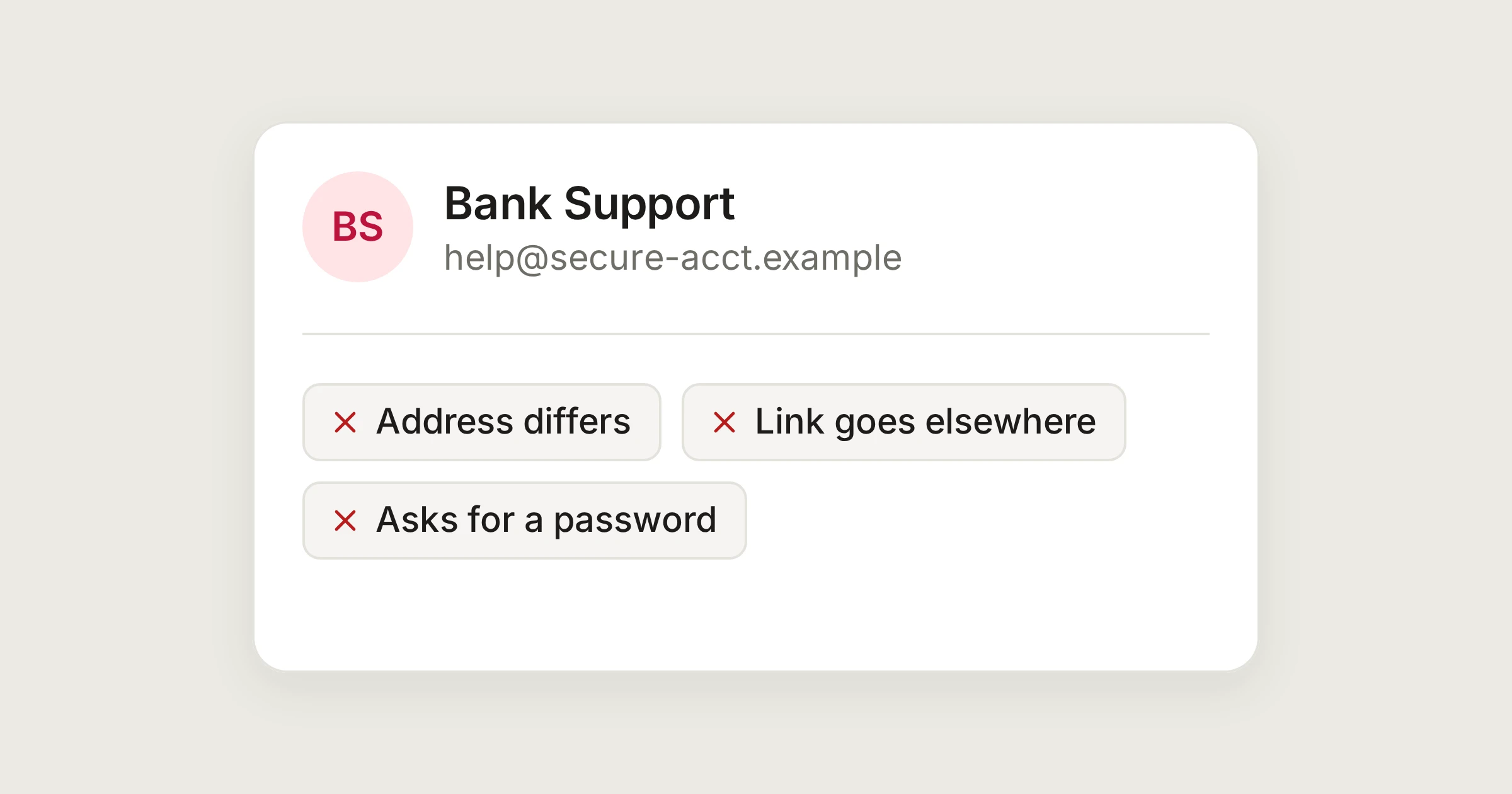
On this page
A phishing email wants you to do something quickly: click, sign in, pay, open a file. It borrows a name you trust to get you to do it. Most of the signs are in the message, and you can read them in under a minute.
In short
Look at the real address, where a link goes, what you are being asked to do, and whether anyone expected this.
Slow down for anything about money, passwords or a changed bank account.
DMU Mail cleans mail, holds back pictures, removes trackers, checks files for viruses and shows a logo only on mail that proves its origin. None of that replaces a second look.
What to look at first
The address, not the name. The name in the From line is only text and anyone can write it. Open the sender's details and read the address. Look for a domain that is one letter off from the one you know, such as a swapped or doubled letter.
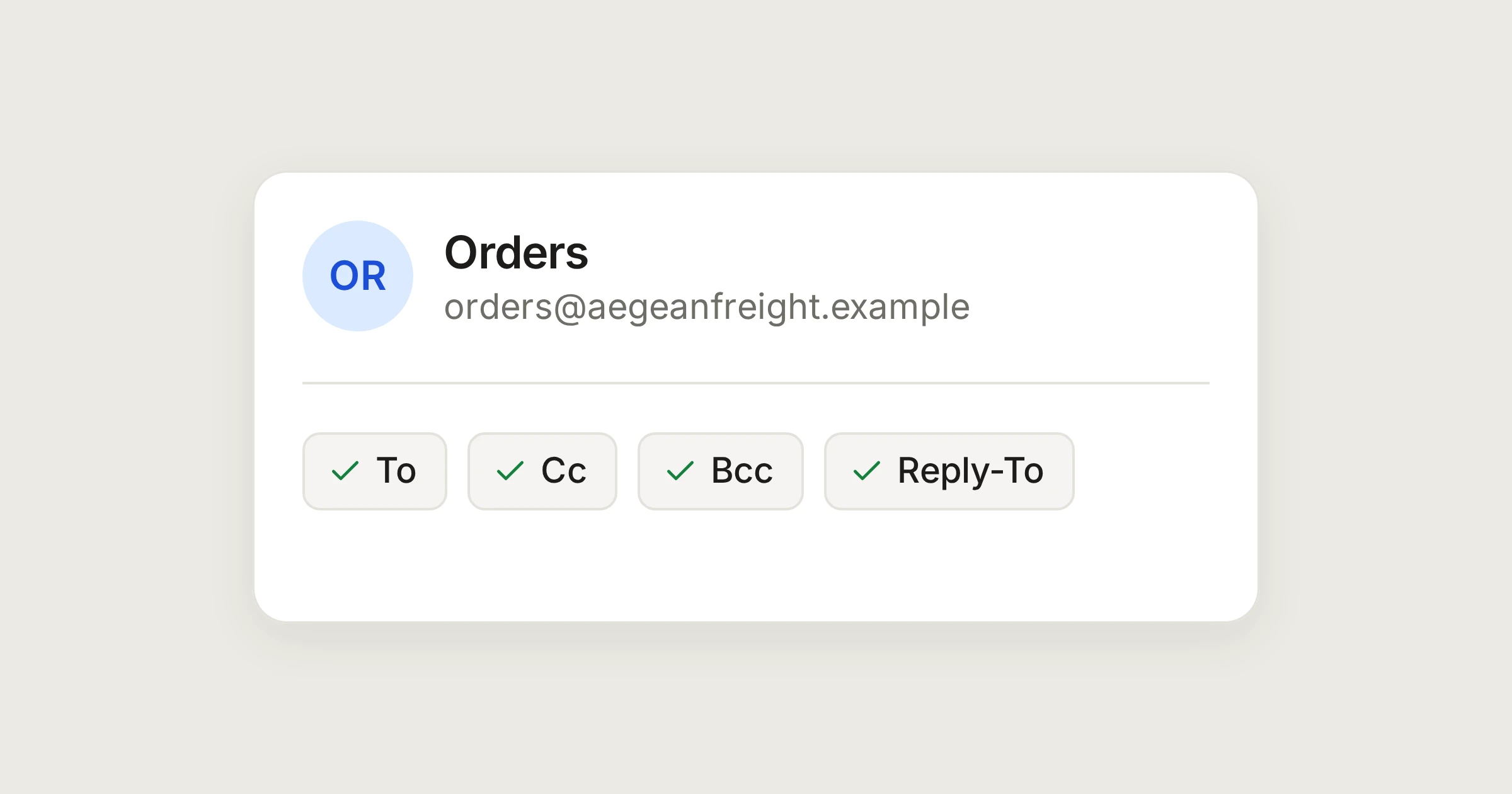
Where replies go. A message from one address that asks for answers at a different one is a sign. DMU Mail shows a Reply-to line in the message details when it differs from the sender.
Where a link really goes. Hover over it before you click, and read the address that appears. A link that shows one address and opens another is the oldest trick there is.
What it asks. A request for a password, a payment or a gift card, or a new bank account for an invoice you already know, deserves a call to a number you already have, not one from the message.
Whether you expected it. An invoice from a supplier you do not use, or a parcel you did not order, is a reason to stop.
The pressure. "Within the hour" and "your account will be closed" are there to stop you thinking.
When in doubt, go round it
What DMU Mail does on its side
Each of these is on by default. None of them needs setting up unless it says so.
Mail is cleaned and opened with scripts off
Every email is cleaned on our servers when it arrives, and then shown in a frame with scripts switched off. Scripts and anything else that could run are removed. See Safe email reading.
Pictures wait for you
Pictures from the web stay hidden until you choose Show images, for one message or for senders you pick. When you do show them, they load through DMU Mail, so the sender's server sees ours, not your address. A picture you show can still tell the sender that the message was opened.
Trackers are removed
Tracking pixels are removed from every message, even when you show images, and a small icon on the message lists what was removed. See Trackers blocked. This was added in the release of 25 October 2026.
Files are checked for viruses
Every file that arrives, every file you attach and every large file you share as a link is checked for viruses first. A file with a virus is blocked and cannot be opened, downloaded or forwarded. Administrators choose what to do with programs, Office files with macros and password-protected archives, in Settings › Virus protection. See Virus protection. This was added on 26 October 2026.
A logo only when it is proven
A company's logo, or a provider's such as Gmail, shows beside its mail only when the mail proved it came from that domain. A forged @gmail.com address keeps its plain initials. So an expected logo missing from a message that claims to be from that company is worth noticing. See Company logos.
A notice on mail from outside
A conversation with mail from someone nobody at your organisation has written to carries a notice, which asks you to take care with links, attachments and payment details. It stays on a message that cannot prove it came from its domain.
The spam filter
Suspected spam goes to Spam, with a banner that says why. In Spam, pictures and links are switched off. The filter weighs the sender checks, your provider's spam flag, and display names that copy another address. How strict it is, Light, Standard or Strict, is set in Settings › Spam & senders. Strict catches more, and sometimes real mail too. See Team spam filter.
Block a sender
From the Spam menu, block one sender or everyone at their domain. Their mail never reaches DMU Mail, not even Spam, and nobody is sent a bounce. At your provider it goes to Trash, so you can still find it. Block is not offered on a message that failed its sender check, so a forged message can never get a real sender blocked. See Block a sender.
Is this email safe?
If your organisation has the Assistant on, the ⋯ menu of a message has "Is this email safe?". It puts DMU Mail's own checks into plain words: whether the mail passed its sender's checks, an address one letter off from one you write to, a first message from that address, a Reply-To that points elsewhere, links that go somewhere other than they say, a bank account that changed, and the virus scan. The Assistant explains and you decide. See The Assistant.
What no tool can do
A protection can only act on what it can see. A well-written message from a real, compromised account can pass every check. So report what looks wrong. In DMU Mail, choose Mark as spam, which teaches the filter. When three different people report the same sender within 30 days, that sender is blocked for everyone.
Share