Know at once when a key client writes
Mark mail from a client's domain important, label it, and notify the people who look after them, wherever in your shared mailboxes it arrives.
DMU Mail team· · 3 min read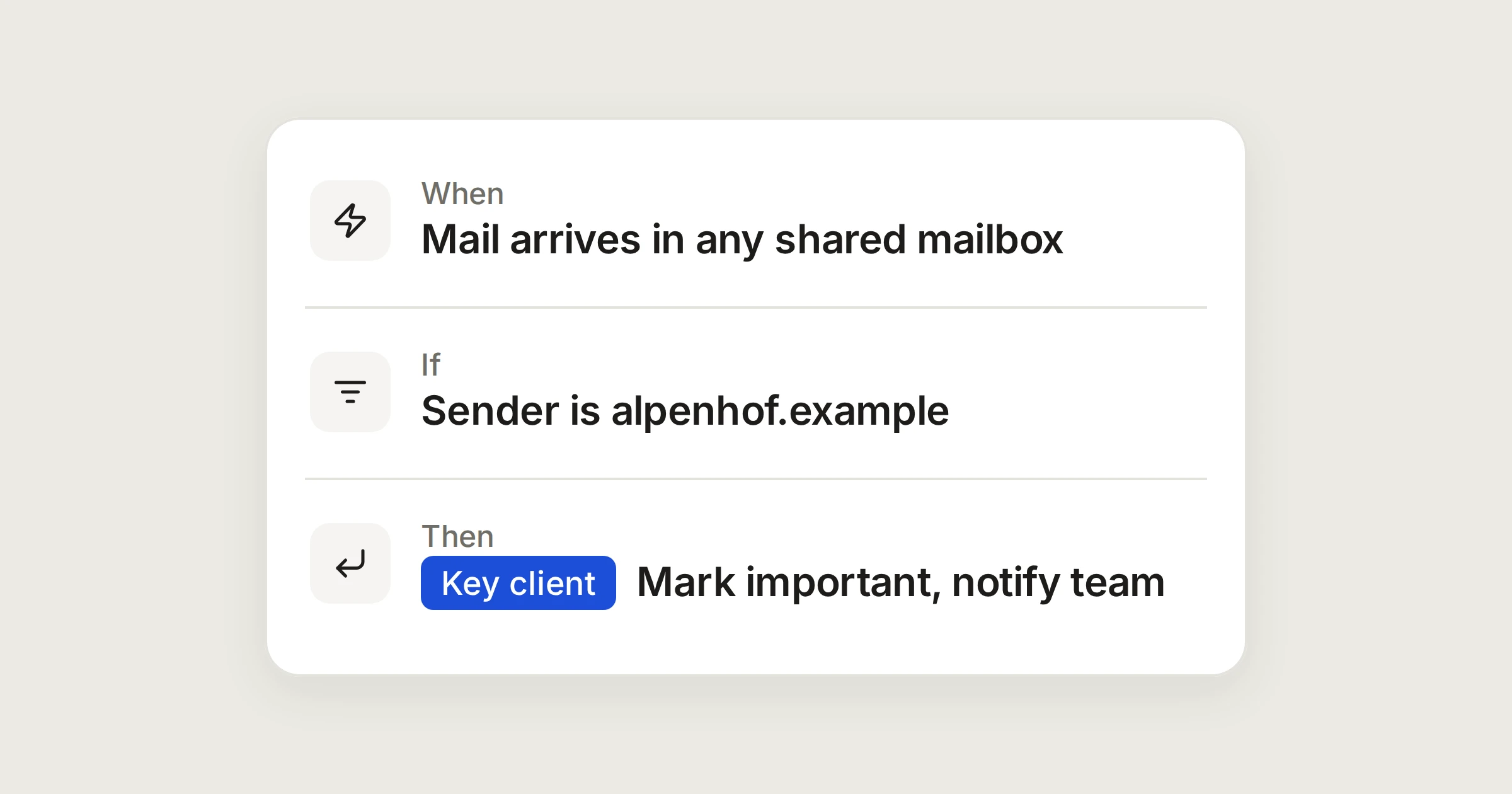
On this page
Most mail can wait for its turn. A few senders can't: the client whose shipments are on a tight schedule, the customs agent with a deadline. The risk isn't that nobody answers, it's that their message sits in a shared mailbox while everyone assumes someone else has seen it.
An automation can make those messages stand out the moment they arrive, and tell the people responsible. This one works for any sender or domain you choose.
In short
Mail from one domain is marked important and labelled in any shared mailbox.
The people who look after that client are notified in their bell.
You test it on recent mail before it runs.
What the automation does
Say Aegean Freight looks after Alpenhof Trading, a client that writes from alpenhof.example. You want three things to happen when they write:
The conversation is marked important, so it shows in the Important view and everyone who can see it sees the flag.
It gets a label with the client's name, so you can filter by it later.
The Key accounts team is told, so a person looks at it now rather than when they next open the inbox.
The automation
Make the label first, in Settings › Labels. Then in Settings › Automations choose New automation.
A key client writes
Mail from alpenhof.example is flagged, labelled, and the team that looks after them is told.
- A message arrivesinAny shared mailboxBoth
- Senderisalpenhof.example
- 1Mark important
- 2Add a labelAlpenhof Trading
- 3Notify peopleKey accounts
Settings, then Automations, then New automation. Administrators only, unless your organisation lets members make them.
How each part behaves.
Any shared mailbox. The first choice in the mailbox list watches all of them, so the rule still works when the client writes to a different address. Choose one mailbox instead to limit it.
Both. New conversations and replies are both covered, and a reply counts only in a conversation the rule hasn't acted on yet. A long thread therefore doesn't notify the team on every message.
Sender is. Type a domain, such as alpenhof.example, to match everyone at it, and its subdomains too. Type a full address, such as orders@alpenhof.example, to match just that one. Add several under the same condition and any of them matches.
Notify people. Choose people, teams, or both. They get a notification in their bell: “The automation “A key client writes” asks you to look at this”. It names the conversation's subject, and only people who can see the conversation are told. If nobody you chose can see it, the step is skipped and the automation keeps doing the rest.
A word of caution about the sender
The rule goes by the address written on the message. Anyone can write another domain in the From line, so treat this as a nudge to look, not as proof that the mail is from your client. It is a good fit for “look at this soon”, and a poor fit for anything you'd regret if a stranger triggered it. Marking important and notifying are harmless in that sense, which is why they suit this rule.
Check it first
In the automation, find Test on recent mail and choose a mailbox.
Choose Run the test. The last 200 conversations are tried and nothing is changed.
Check that the conversations that matched are the client's, and that nothing else did.
Save it, then switch it on.
If you add a condition later, such as only when the subject has “urgent”, run the test again. An automation that is on switches itself off if you change it untested.
Variations
Assign it instead. Replace the notification with Assign, choose the person or team, and for a team choose “whoever has fewest open” or “taking turns”. Notifying works on Team and Business plans, and so does assigning, because both need more than one person.
Just for you. On a private mailbox you can make the same rule as your own automation, if an administrator lets members make them. Marking important and labelling work there too.
Keep other rules off it. Add Then stop at the end if the automations below this one shouldn't also act on this client's mail.
Share