Send every invoice to Accounts, without forwarding
One automation labels each invoice that reaches info@ and hands it to the Accounts team in turn. Test it on recent mail, then switch it on.
DMU Mail team· · 3 min read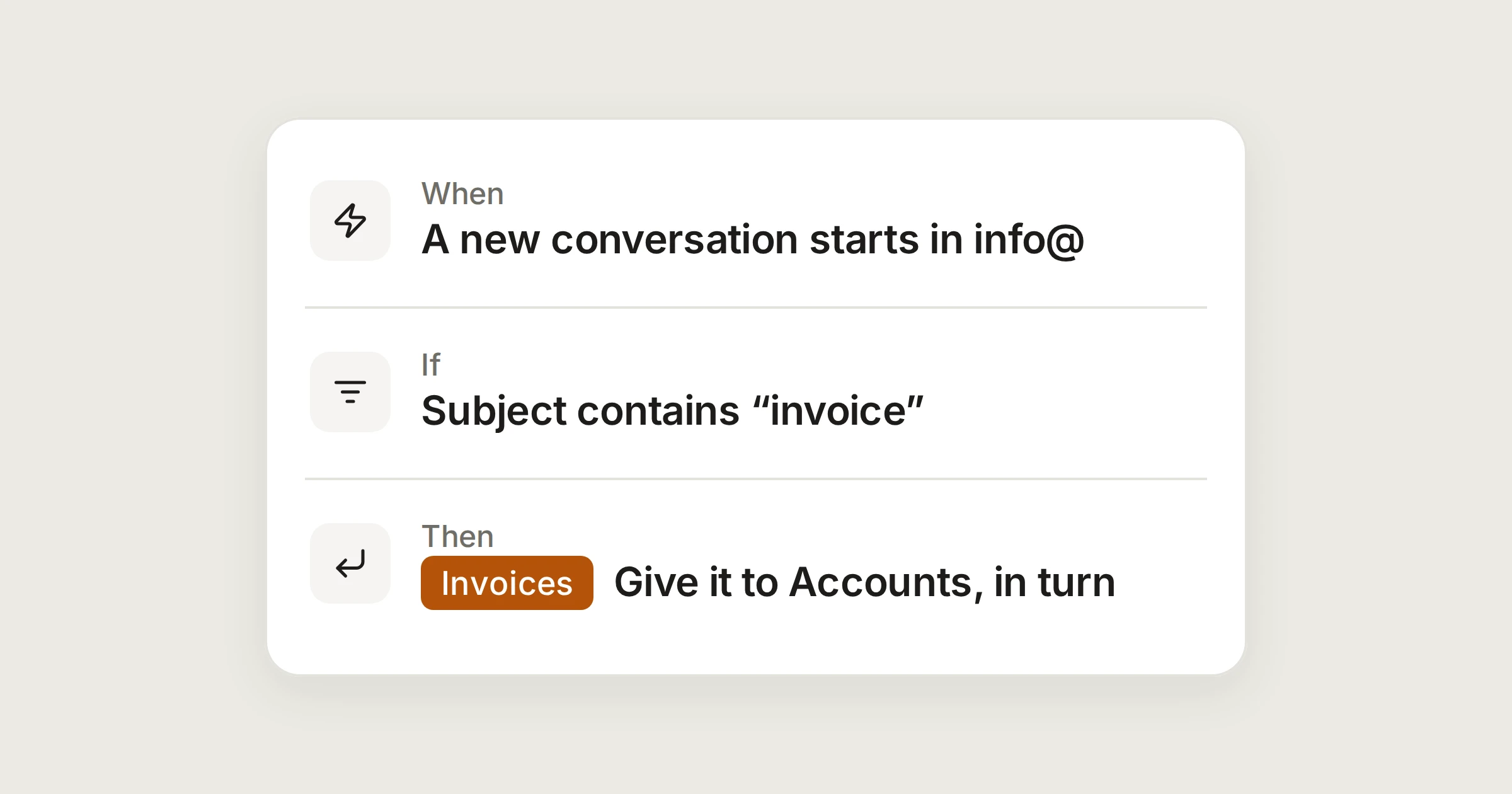
On this page
Invoices have a habit of arriving at the wrong desk. They land in info@, someone notices a day later, and then somebody forwards them to Accounts. The forwarding is the part nobody should have to do.
An automation can do it as the mail arrives. It labels the conversation, then gives it to one person in the Accounts team, and the next invoice goes to the next person. Nobody forwards anything, and the conversation stays in info@ where everyone can see it.
In short
Mail with “invoice” in the subject gets the Invoices label.
It is given to a member of the Accounts team, taking turns.
You test it on recent mail first. It cannot be switched on untested.
Before you start
You need three things in place.
The label. Make a label called Invoices in Settings › Labels, if you don't have one. Pick any colour; the one in the recipe below is amber-700.
The team. Settings › Teams has the Accounts team, with its members in it.
The right to make it. Administrators make the organisation's automations. Members can make their own only if an administrator lets them, and those act on their own private mailboxes, not on info@.
Assigning needs a team, so it isn't available on the Individual plan, where there is only one person.
The automation
Open Settings › Automations, choose New automation and give it a name. Then fill in When, If and Then like this.
Invoices to Accounts
Every new invoice at info@ is labelled, then given to Accounts in turn.
- A message arrivesininfo@aegeanfreight.exampleNew conversations
- Subjectcontains any ofinvoice
- 1Add a labelInvoices
- 2Assignthe Accounts teamtaking turns
Settings, then Automations, then New automation. Administrators only, unless your organisation lets members make them.
A few details about how it behaves.
The words. The subject only needs to contain the word, in any case. “Invoice 4471 from Alpenhof Trading” matches, and so does “Re: invoices for October”. Type more words under the same condition to match any one of them.
Taking turns. DMU Mail gives the conversation to the next member of the team in a fixed order, and remembers where it got to. Only members who can open info@ are given mail, and nobody who has left.
Already handled. If a member of Accounts already has the conversation, nobody else is added.
If you'd rather balance the load. The How menu also offers “whoever has fewest open”, which counts each person's open conversations in that mailbox.
Check it first
You don't have to trust the rule. DMU Mail tries it on mail you already have.
In the automation, find Test on recent mail and choose the mailbox, here info@.
Choose Run the test. It looks at the last 200 conversations and changes nothing.
Read the result: how many would have matched, and for each one the words that made it match, such as Subject: invoice.
If something matched that shouldn't have, tighten the If. If an invoice was missed, add another word.
Then save it and switch it on. An automation starts switched off, and DMU Mail runs the test again if you haven't. The Switch on box says how many of the recent conversations matched, and offers to run the rule now on the open ones that match. Closed conversations are left as they are.
Changed it later?
What you will see
Each conversation records what the automation did: the label it added and the person it assigned. Open the automation's Runs tab to see the last 100 runs, and open a row to go to the conversation. If something can't be done, for example the label was deleted or nobody in the team can open the mailbox, the automation keeps doing the rest and shows a warning with what to change.
Automations run from the top of the list down. Drag them to change the order, and use Then stop on one if the automations below it shouldn't also act on the same message.
Share