An out-of-hours reply that never answers itself
Set your opening hours and closed days, then let one automation say when you'll be back, once, and never to a machine.
DMU Mail team· · 3 min read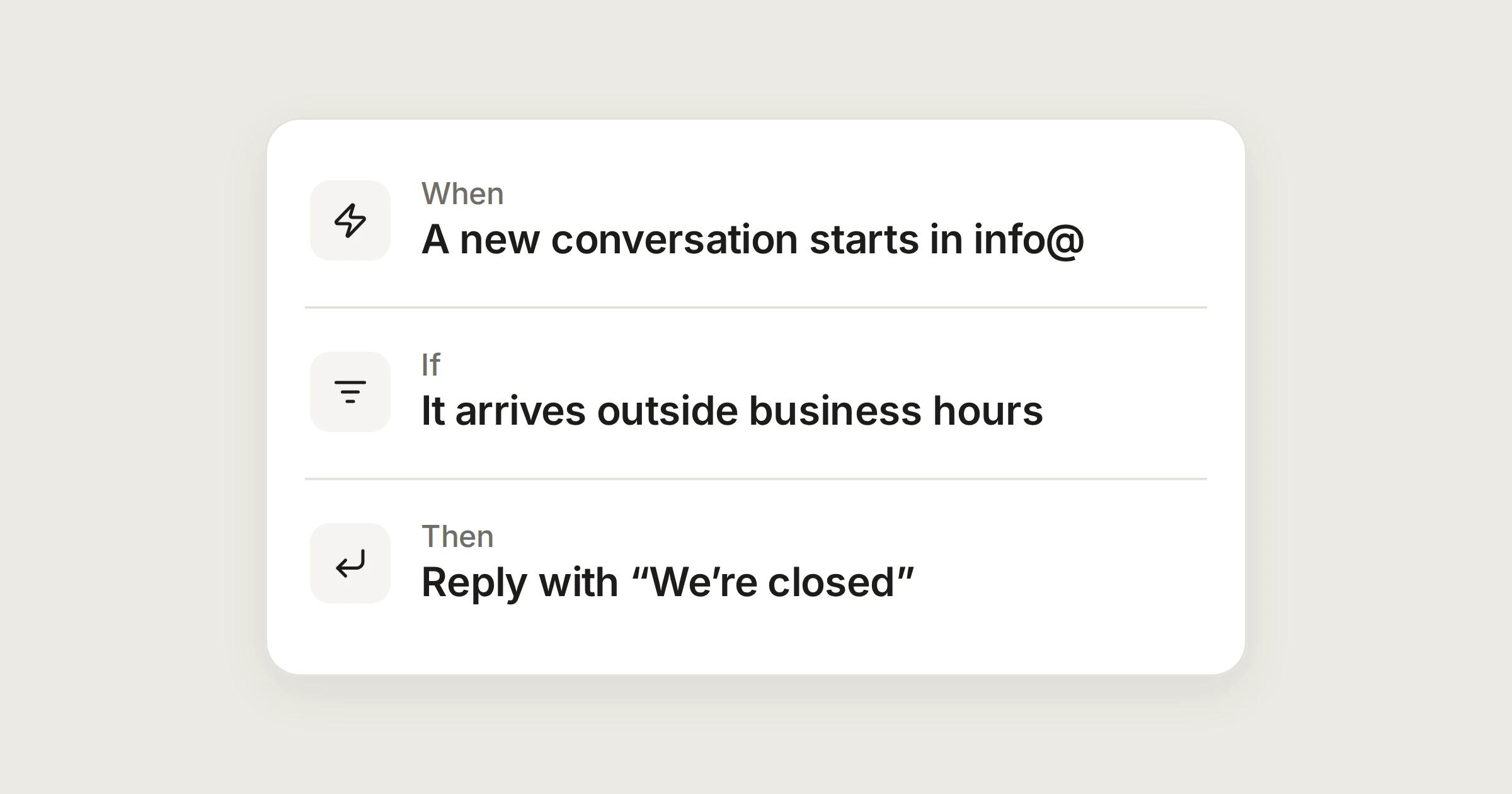
On this page
An automatic reply is a small kindness: someone writes at nine in the evening and hears back that you open at nine tomorrow. It is also the classic way for two machines to talk to each other all night. This post sets up the reply, and then lists exactly what stops that from happening.
In short
Set your hours, time zone and closed days once, in Settings › Details.
One automation replies with a template of yours when mail arrives outside them.
Each conversation gets one reply, a sender gets at most one a day, and machines get none.
Step 1: set your hours
Only administrators can change business hours. Open Settings › Details › Business hours.
Choose your Time zone. Summer time is handled on both sides of a change.
For each day, set when it opens and closes, or mark it Closed. Copy to weekdays copies Monday's hours to Tuesday to Friday.
Under Closed days, choose Add a day for each day you are off, and give it a name. Public holidays for the year can be added in one click; the button offers Greek ones.
A closed day is closed all day, whatever the weekday says. Until an administrator saves hours, automations work by Monday to Friday, 09:00 to 17:00, Athens time, so check them before you rely on the rule.
Step 2: write the reply
Open Settings › Response templates and write the message, for example the time you are back and who to call for something urgent. A template with fields to fill in can't be used, because nobody is there to fill them in. The automation picks the template by name.
Step 3: the automation
Out-of-hours reply
New mail outside your opening hours gets your template, once.
- A message arrivesininfo@aegeanfreight.exampleNew conversations
- It arrivesoutside business hours
- Reply with a templateWe're closed
Settings, then Automations, then New automation. Administrators only, unless your organisation lets members make them.
When you choose “outside business hours”, the editor spells out your hours underneath, such as Monday to Friday 09:00 to 17:00, so you can see what it will use. Change takes you to Business hours.
What stops it answering itself
The guards run before anything is sent, and the test asks the same questions of recent mail.
Never to machines. Not to no-reply addresses, other automatic replies, bounces, mailing lists or bulk mail, and not to mail that asks for no automatic replies.
Once per conversation. A conversation that already has an automatic reply gets no second one.
Once a day per sender. The same person writing about three things gets one reply, not three.
A limit of 100 an hour across the whole organisation.
Never to yourselves. Your own addresses, members and domains get none, so two of your mailboxes can't answer each other.
Only proven senders. The reply goes to the From address, and only when its provider has proved it (DKIM or DMARC passed). It goes only for mail actually sent to that mailbox, never a Bcc copy. A forged From can't make DMU Mail write to a third party.
Marked as automatic. The reply carries the standard headers that tell other systems not to answer back, and shows an Automatic reply badge in the conversation.
Only for new mail. Switching the rule on never sends replies to mail that is already there.
What an automation does never starts another automation either, so a reply can't set off a chain.
Test it
Choose Run the test on recent mail in the mailbox. Besides how many conversations matched, it shows who would get the reply and who wouldn't, with a reason for each, such as “a no-reply address” or “they already had one today”. Expect newsletters and notifications in the “wouldn't” list. That is the guards doing their work.
Then switch it on. The box offers to run the rule on open conversations that match, but no automatic reply is sent to those.
The reply comes from the mailbox
Share