Share new mail out in turn, and catch what waits
Give each new conversation to the next person in a team, then add a second automation that speaks up when a customer has waited four working hours.
DMU Mail team· · 4 min read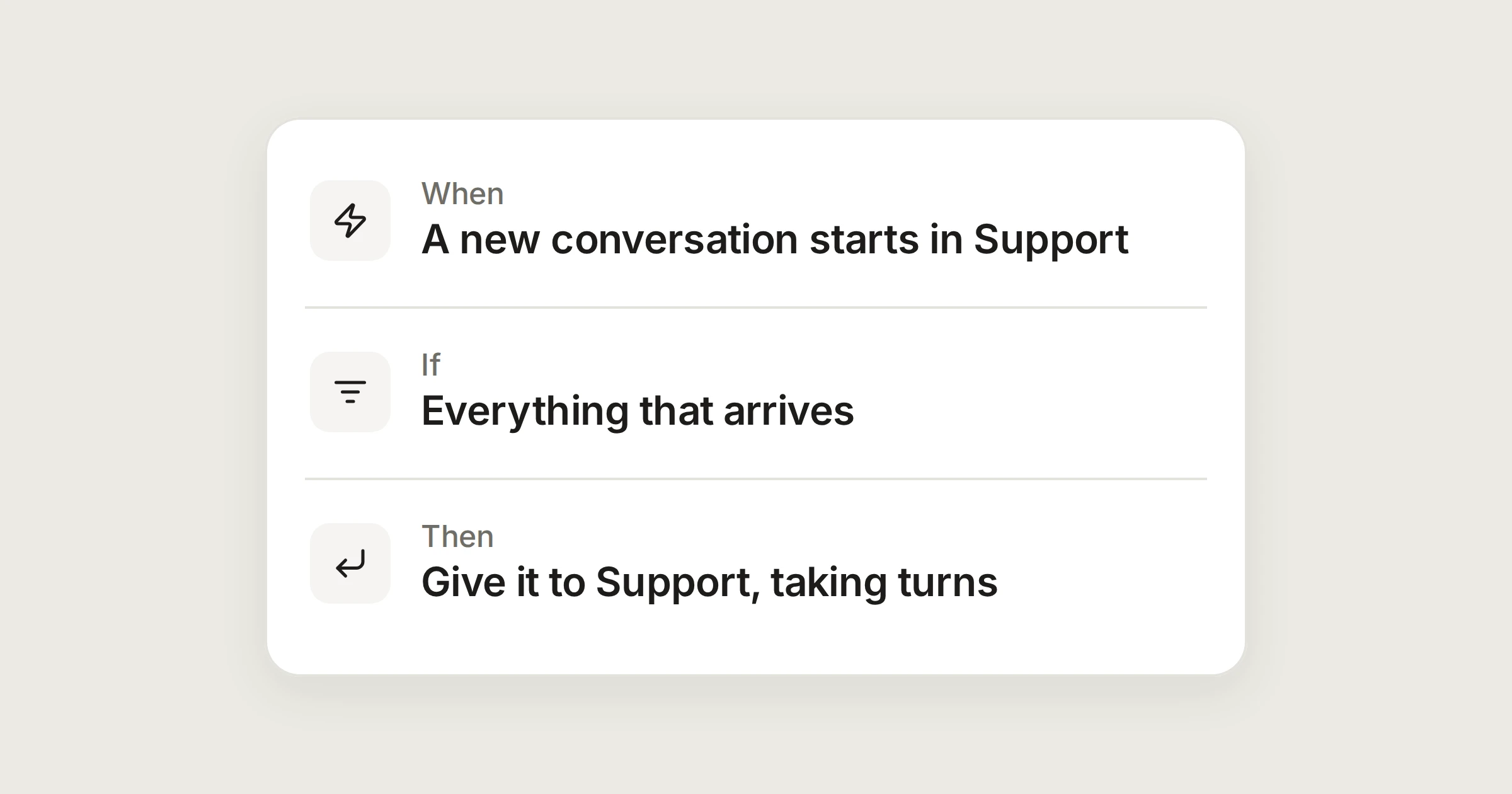
On this page
In a shared mailbox, everyone can see everything, which is the point. The side effect is that nobody in particular owns a new message. People pick up the easy ones, the awkward ones wait, and a customer ends up waiting while three colleagues each assume another has it.
Assigning each new conversation to someone fixes the ownership. Doing it by hand is a chore. An automation can do it for you, and the editor offers two fair ways to share the work.
In short
A new conversation goes to the next member of a team, taking turns.
Or to whoever in the team has the fewest open conversations in that mailbox.
A second rule marks it important and tells the team when a customer waits too long.
The rule that shares the mail out
Open Settings › Automations and choose New automation. This one has no If, which in this editor means it acts on everything that arrives.
New mail in turn
Each new conversation in Support goes to the next person on the Support team.
- A message arrivesinsupport@aegeanfreight.exampleNew conversations
- Assignthe Support teamtaking turns
Settings, then Automations, then New automation. Administrators only, unless your organisation lets members make them.
What “taking turns” means here:
A fixed order. The team's members are taken in the same order each time, and DMU Mail remembers who had the last one.
Only people who can open the mailbox. Members of the team who can't open Support are skipped, and nobody who has left is given mail. If nobody in the team can open it, the automation says so and can't assign.
Additive. If someone from the team who can open the mailbox already has the conversation, nobody else is added.
The history shows it. The conversation's history says which automation assigned it and to whom.
Or whoever has the fewest open
Change How from “taking turns” to “whoever has fewest open”. DMU Mail counts each team member's open conversations in that mailbox and gives the new one to whoever has the fewest. A tie goes to whoever's turn it is. That suits a team where some conversations stay open for weeks and an even rota would pile them up on one person.
The rule that catches what waits
Sharing mail out doesn't guarantee an answer. A second automation can watch for conversations that sit unanswered, and it can count working hours only, using the hours you set in Settings › Details › Business hours.
A customer waits 4 working hours
After 4 working hours with no reply, mark it important and tell the team.
- A conversation waits for a replyfor4working hoursinsupport@aegeanfreight.example
- 1Mark important
- 2Notify peopleSupport
Settings, then Automations, then New automation. Administrators only, unless your organisation lets members make them.
It counts from the customer's last message while the conversation is open and nobody on your side has answered. It acts once per wait, and a new message from the customer starts a new one. A message that arrives at 16:30 on a Friday has waited four working hours on Monday morning at about 12:30 if your hours are Monday to Friday, 09:00 to 17:00, which is the point of counting working hours. Until an administrator saves business hours, DMU Mail uses Monday to Friday, 09:00 to 17:00, Athens time, so set them first.
Test them before they run
In each automation, find Test on recent mail, choose the mailbox and choose Run the test.
DMU Mail tries it on the last 200 conversations and changes nothing. Check how many would have matched, and which.
Save the automation and switch it on. An automation that hasn't been tested can't be switched on.
When you switch the first rule on, DMU Mail offers to run it now on the open conversations that match. Say yes if you want today's unassigned mail shared out. Closed conversations are left as they are.
Keep an eye on it
Each automation has a Runs tab with its last 100 runs for 30 days, and each conversation records what the automation did.
An automation that acts on more than 60 conversations in a minute pauses itself, and administrators are told. Check it, then switch it on again.
Automations run from the top of the list down. If you also have a rule that labels or closes some mail, put it above the sharing rule and use Then stop so that mail isn't assigned to anyone.
Assigning and notifying are for organisations with more than one person, so they aren't available on the Individual plan. Administrators make the organisation's automations. Members can make their own, for their private mailboxes only, when an administrator allows it in Settings › Automations › Permissions.
Share