A shared inbox or a shared password: the difference
Many teams start by sharing one login to info@. What that costs you as the team grows, and what a shared inbox does differently.
DMU Mail team· · 5 min read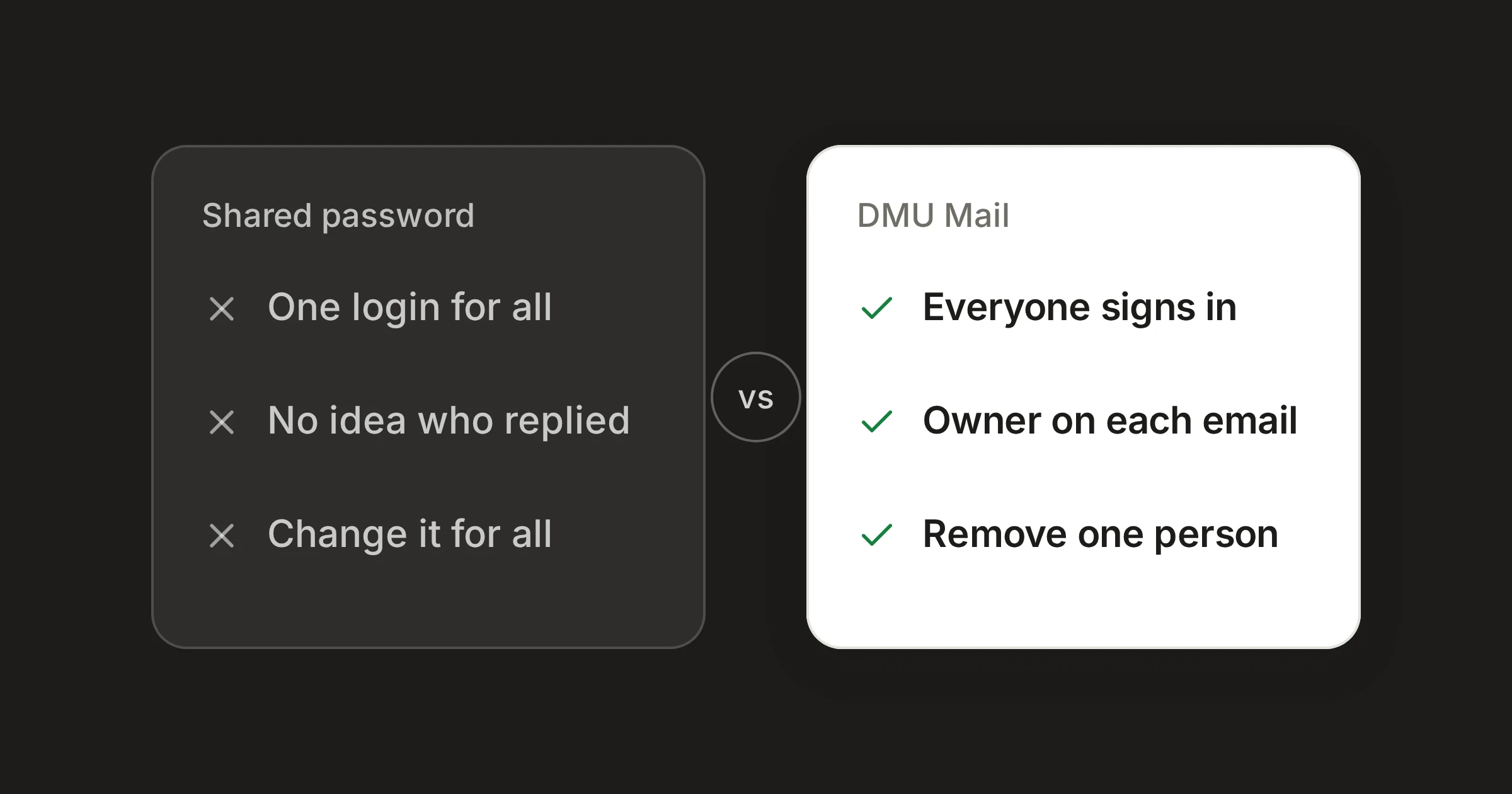
On this page
In short
A shared password works while one person at a time reads one address. It stops working when you need to know who has what.
The costs show up in four places: who replied, two people answering at once, taking someone’s access away, and two-step sign-in.
A shared inbox gives each person their own sign-in and puts the owner of every conversation in plain view. It does mean everyone needs an account.
Sharing one login to info@ is how most teams start. Someone sets the address up, writes the password in a message or a note, and the first three people are reading mail within the hour. There is nothing to buy and nothing to learn. For a long time it works.
This post is about the day it stops working, and what a shared inbox does about each problem. It also says where a shared password is still the sensible choice.
What a shared password costs
Nobody knows who replied
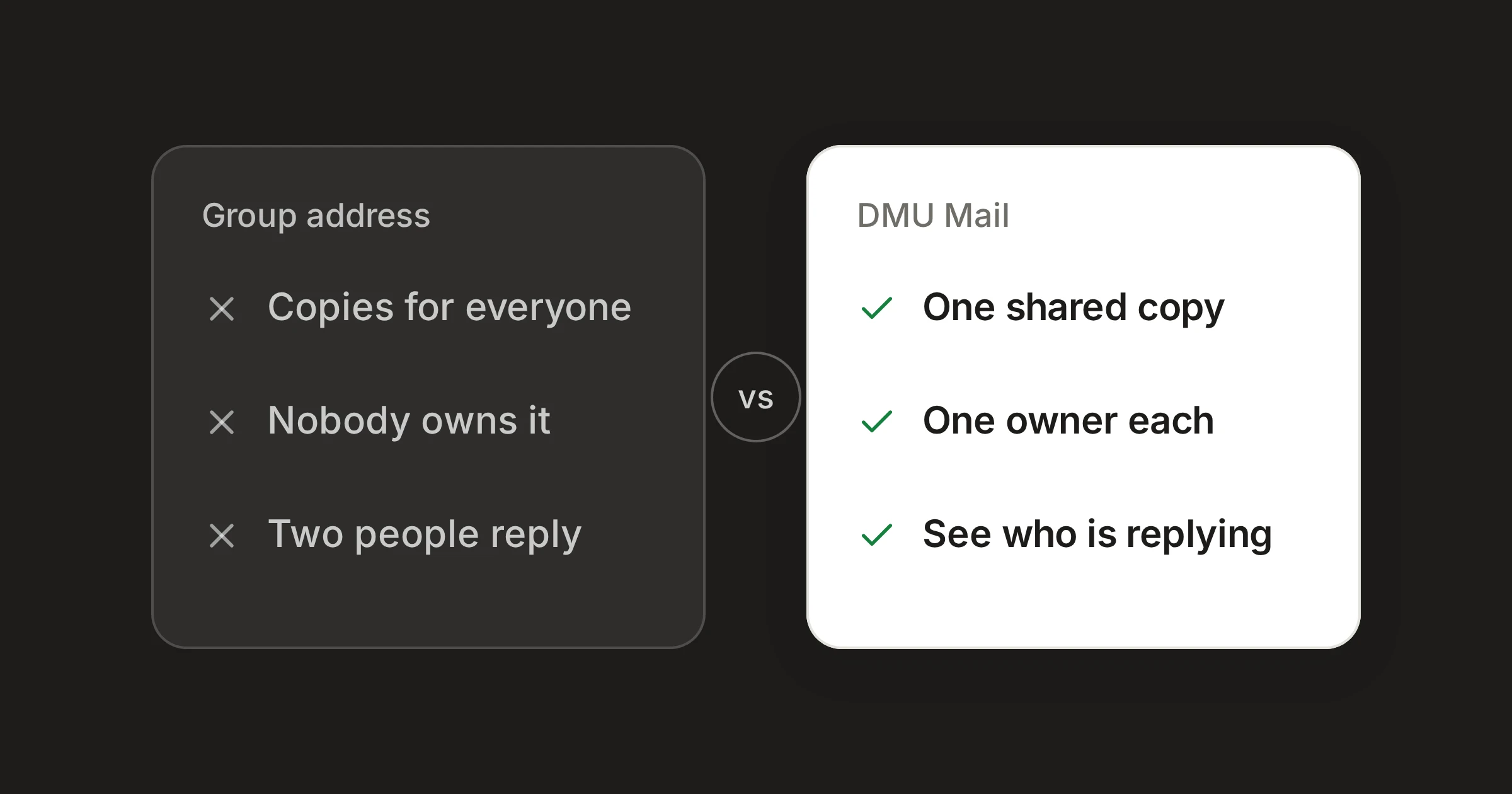
When three colleagues sign in as the same person, the mailbox cannot tell them apart. A message is answered, or it is not, and the only way to find out is to ask in the office. Nothing marks a conversation as taken, so each person starts by wondering whether someone else has dealt with it already.
Two people answer at once
Two people open the same email within a minute of each other. Neither can see that the other is there. Each writes a reply, and the customer receives two answers, sometimes saying different things.
Taking someone’s access away is a chore
Someone leaves, or moves to another team. To remove their access you change the password, then tell everyone who stays, and everyone updates wherever they saved it. Until you do, the person who left can still sign in. If you skip the task because it is a nuisance, it stays undone.
Two-step sign-in has no good home
Two-step sign-in sends a code to one phone, or relies on a secret that is itself shared. When the person who set it up is on holiday, the others wait. Or the secret gets shared too, and the second step is no longer a second step.
What a shared inbox does differently
In a shared inbox, the address is connected once and the people are separate from it. Each person signs in as themselves, and the mailbox is shared with them.
Each person signs in as themselves
- A shared password
- No, everyone uses the same login
- DMU Mail
- Yes
See who has a conversation
- A shared password
- Ask in the office
- DMU Mail
- Assign it to one person or several
See that a colleague is writing a reply
- A shared password
- No
- DMU Mail
- Yes, in the conversation and in the list
Remove one person’s access
- A shared password
- Change the password and tell everyone
- DMU Mail
- Untick them on the mailbox, or remove them from the organisation
Two-step sign-in
- A shared password
- One phone, or a shared secret
- DMU Mail
- Each person sets up their own, and an administrator can require it
Cost
- A shared password
- Nothing extra
- DMU Mail
- Each person needs their own account
| A shared password | DMU Mail | |
|---|---|---|
| Each person signs in as themselves | No, everyone uses the same login | Yes |
| See who has a conversation | Ask in the office | Assign it to one person or several |
| See that a colleague is writing a reply | No | Yes, in the conversation and in the list |
| Remove one person’s access | Change the password and tell everyone | Untick them on the mailbox, or remove them from the organisation |
| Two-step sign-in | One phone, or a shared secret | Each person sets up their own, and an administrator can require it |
| Cost | Nothing extra | Each person needs their own account |
Checked on 31 Oct 2026. Sources: Shared inboxes, Assignment, Who’s on it, live, Two-step and passkeys.
Spotted something out of date? Write to support@dmu.email and we’ll correct it.
Here is how those rows play out.
Who has it. A conversation is assigned to one person or to several. Their faces show beside it in the list, and the Assigned to me and Assigned to others views show what is still to do. Mail nobody has taken waits in the Inbox until someone does.
Not answering twice. The top bar of a conversation shows who is reading it, and a colleague who starts a reply shows on its row in the list before you open it. A band on the message warns you if someone else is writing, and Send asks first if their reply has already gone out. It is a warning, not a lock: you decide together.
Taking access away. An administrator ticks or unticks people on a mailbox’s Access tab, in Settings › Mailboxes. Removing someone from the organisation is one action, and the dialog lists what goes with them before you confirm. Nobody else changes anything.
Two-step. Each person turns on two-step verification or adds a passkey for their own account in Settings › Account › Security. Administrators can require two-step for every member.
There is also a record. Every change to a conversation is written into it: who assigned it, who closed it, and when. When a colleague asks what happened to an email last week, you read the history instead of asking around.
Where a shared password is good enough
A shared password is a fair choice in a few cases.
One reader at a time. If one person reads info@ in the morning and another in the afternoon, and they hand over by speaking to each other, you may not need more.
Low volume. A handful of messages a week does not need an owner for each one.
No budget for another account per person. A shared inbox puts a price on every person who uses it. A shared password does not, and for a very small team that matters.
A short-lived address. For a campaign or an event that will be closed in a month, the cost of setting up properly may be more than the problem.
A test you can run today
What moving involves
You do not have to change your address. An administrator connects info@ in Settings › Mailboxes, and Gmail and Microsoft 365 connect with a Google or Microsoft sign-in. Then they choose who sees it: everyone in the organisation, or the teams and people who answer it. The mailbox keeps its address and its provider. Your customers see nothing different.
When you are ready, the docs on shared and private inboxes walk through it, and Invite your team covers adding people.
Share