Shared and private inboxes
Each mailbox is seen by everyone, by chosen teams and people, or by you alone. The sidebar keeps shared and private apart and gives you the same views for each.
Updated 25 October 2026 · 4 min read
Who sees a mailbox
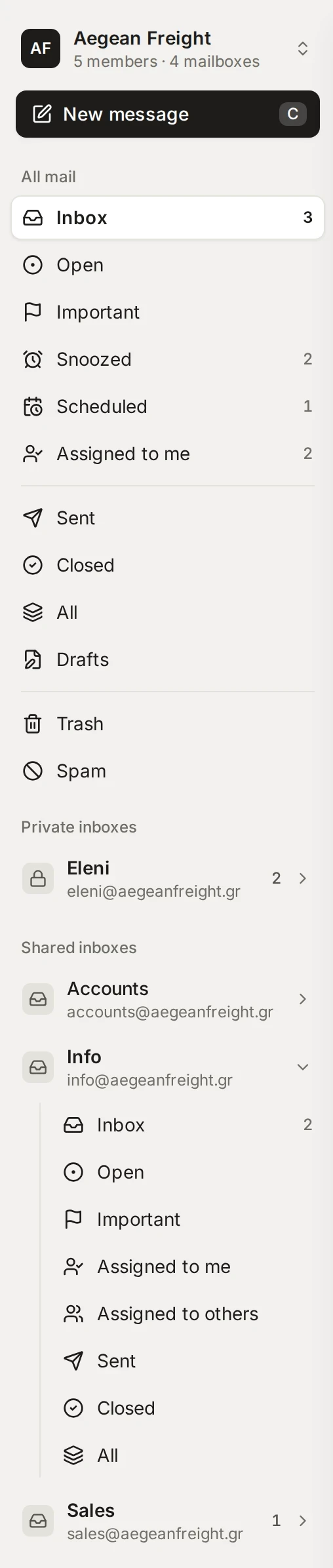
Whoever connects a mailbox chooses who can see it, and an administrator can change it later. You see the answer in the sidebar: shared mailboxes are under Shared inboxes, your own are under Private inboxes.
- Everyone in the organisation
- Every member reads and works the mail. Administrators can always see every shared mailbox.
- Teams and people
- Only the teams and people ticked for it, plus administrators. When someone joins or leaves one of those teams, their access follows.
- Only you
- A private mailbox. Nobody else can read it. Administrators see only that it exists, whose it is and whether it is connected. To share it later, choose “Share with the organisation…” from its menu.
Someone who is assigned a conversation or mentioned in its team chat can see that one conversation, but not the rest of the mailbox. Administrators set all this up under Mailboxes and Teams.
The sidebar
At the top is All mail, which gathers every mailbox you can see. Under it, each mailbox opens into its own views. All mail has these:
- Inbox
- Your own mail: open conversations in your private mailboxes, and open ones assigned to you from any mailbox. Unassigned conversations in a shared mailbox wait in that mailbox’s own Inbox, so the team can pick them up.
- Open
- Every conversation that is not closed yet, whoever has it, in every mailbox you can see.
- Important
- Conversations you flagged.
- Snoozed
- Conversations put away until a time you chose.
- Scheduled
- Conversations with a message waiting to be sent.
- Assigned to me
- Conversations assigned to you that are still to do.
- Sent, Closed, All, Drafts
- Mail you sent, finished conversations, everything that is not in Trash, and messages you are still writing.
- Trash and Spam
- Deleted conversations, and mail marked as spam.
Each mailbox shows Inbox, Open, Important, Assigned to me, Assigned to others, Sent, Closed and All. Drafts, Trash and Spam are only in All mail. Open the arrow beside a mailbox to see its views. You can reorder the sidebar with Customize sidebar, and only you see that layout.
Reading a conversation
A conversation opens at its latest message. By default only the newest message is open and the earlier ones are a line each: click a line to read it, and click Show previous messages to unfold quoted history. The activity, such as who closed or assigned it, sits in the same timeline.
Whether you have read a conversation is yours alone. A colleague on the same shared mailbox keeps their own unread marks. Settings, then Reading, lets you choose when a conversation counts as read, the message order, and whether earlier messages are collapsed.
When you close, trash or snooze the open conversation, DMU Mail opens the next one in the list. On a phone it goes back to the list. Open Settings, then General, and change When a conversation leaves the list if you would rather always go back.
Trash and deleting
Move to trash puts a conversation in Trash for 30 days, then it is deleted for good. Open it in Trash and choose Restore to bring it back. Anyone who can see a mailbox can trash, restore and delete from it, members and administrators alike. Someone who was only given a single conversation cannot.
To delete sooner, use Delete permanently on the conversation or a selection, or Empty Trash in the Trash view. Both ask first and cannot be undone. They remove the copy in DMU Mail only, not the one on your mail server.
Deleting leaves a trace