A client inbox for an accounting office
Invoices and questions arrive all month. Here is how an office gives each client one accountant, covers for leave and answers the monthly questions once.
DMU Mail team· · 4 min read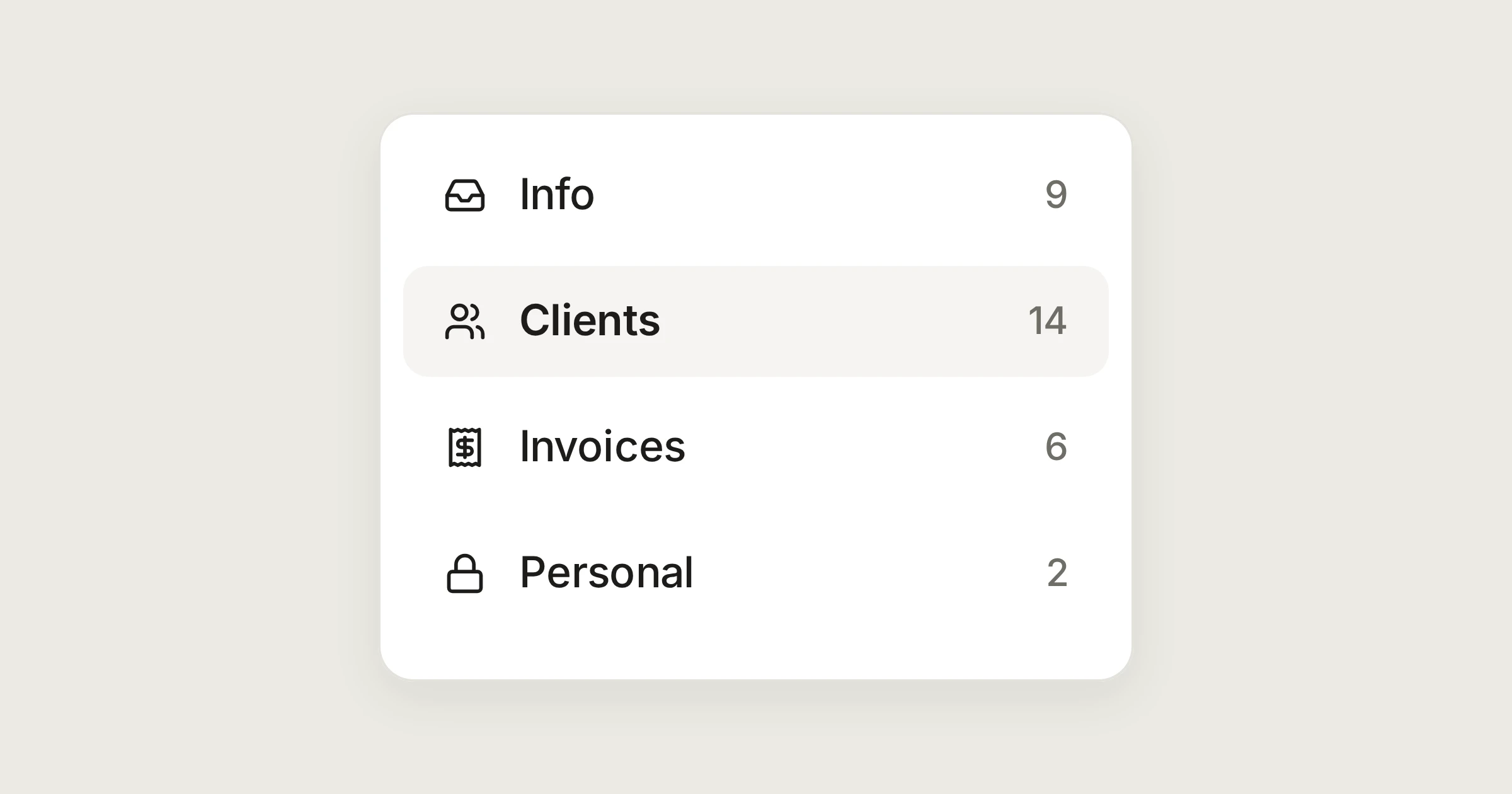
On this page
Clients do not write at convenient times. Invoices arrive in one file on the last day of the month, a VAT question comes on a Friday, and the deadline stays where it is whoever happens to be on leave. This is how a small accounting office could run that on DMU Mail. The office, Harbour Accounts (harbouraccounts.example), and its clients are made up. Aegean Freight, Alpenhof Trading and Kyma Customs play the clients. The accounting offices page has the short version.
In short
Each client's mail goes to the accountant who keeps their books, and everyone can see who.
Invoices open in place, and the answers you give every month are saved replies.
When someone is on leave, a colleague answers from the same address, signed in as themselves.
The mailboxes
The office has three shared mailboxes: info@, clients@ and invoices@. Who sees each one is chosen in the mailbox's settings, on the Access tab. Each accountant also keeps a private inbox beside them. Nobody else in the office can read it, and administrators see only that it exists and whose it is. Shared and private inboxes explains the difference.
One accountant per client
On the last day of September, Aegean Freight sends a month of purchase invoices to clients@. Eleni keeps their books.
Open the conversation and choose Assign to me.
Check the file: open the PDF and the spreadsheet in the conversation, without downloading them.
Reply, and press Send.
The conversation moves to In progress while Eleni has it, and it counts as hers under Assigned to me. By default, Close the conversation after sending is on, in Settings › Writing, so a finished reply closes it. If the client answers later, the reply opens it again, and the history says "Reopened by a new reply".
The file preview feature opens PDFs, Word documents, spreadsheets and photos inside DMU Mail, and Download is always one click away.
Labels and the details panel
Labels mark the kind of work: VAT, Payroll, Year end. They are for the team, and a label never gives anyone access to a mailbox. When you need context, press i on a conversation. The details panel shows the client's contact, your other conversations with them, in this mailbox or every mailbox you can see, and the files you have exchanged. That is where you find last quarter's statement without searching.
Deadlines and the monthly questions
Some mail is not for today. Snooze puts a conversation away until a time you choose, and it comes back at the top of the Inbox, unread. A snoozed conversation is snoozed for everyone, so the colleague next to you sees it is parked. Labels, snooze and spam has the details.
The monthly questions are the other half. "When will the VAT return be ready?" gets nearly the same answer for every client, so write it once:
Open Settings › Response templates and choose New template.
Name it, and write the text, with a blank where the client changes, such as
{{client_name}}.In any reply, choose Saved replies, pick it, and choose Insert. DMU Mail asks for each blank before the text goes in.
A blank you leave empty stays visible in the message, so you see it before you send and never send "Dear ,". A template can be tied to one mailbox, and then only people who can see that mailbox find it, so the VAT answer stays out of info@. The saved replies docs go further.
If every contact carries an Account number, an administrator can add it as a custom field, and saved replies fill it in from the person you are writing to.
What the client sees
An ordinary email from the address they wrote to. They do not see who has their file, the labels or the team chat. Replies go out from the address the message was sent to, so a client who wrote to clients@ hears from clients@.
When someone is on leave
Dimitris is away for ten days in the middle of a VAT deadline. Nobody needs his password.
His clients' conversations stay in his name, and show for everyone else under Assigned to others.
Select his open conversations in the list and choose Assign to give them to Katerina, and click Dimitris's tick to take his name off. Administrators choose who may assign to others, in Settings › Permissions.
Katerina answers from the same address, signed in as herself. The history shows who did what, so Dimitris can read it when he is back.
One honest limit
When the month turns, it starts again: invoices in, one accountant each, the same answers saved once.
Share