Saved replies
Write the answers you send again and again once, then drop them into any message in two clicks.
Updated 24 October 2026 · 3 min read
Use a saved reply
Open a reply or a new message. Put the cursor where the text should go.
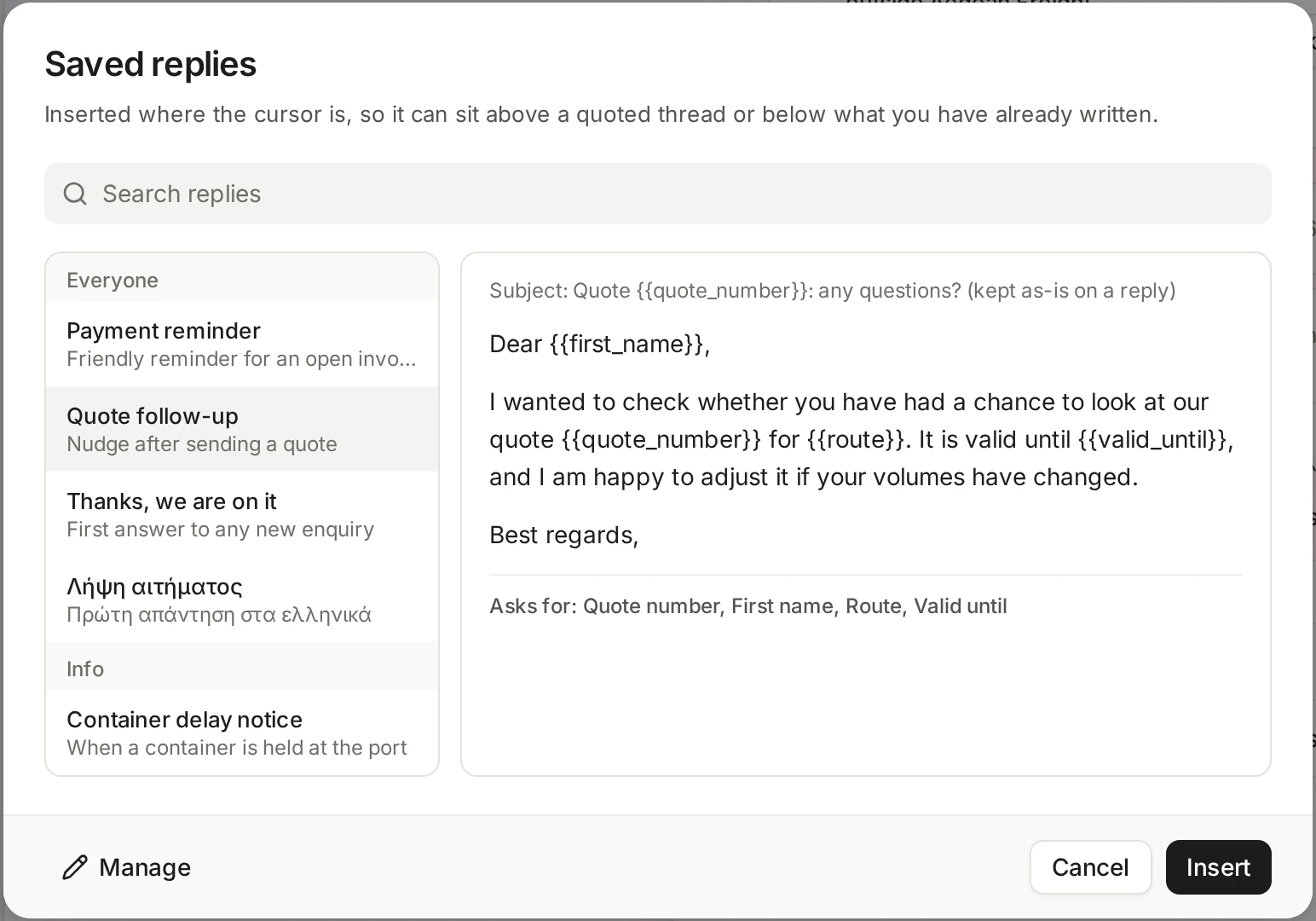
Choose the Saved replies button in the row of buttons at the bottom of the message.
Search by name if the list is long. Select a reply to read it in the preview.
Choose Insert. If the reply has blanks, fill them in first (see below).
The reply goes in at the cursor, so it can sit above a quoted conversation or below what you have already written. If the reply has a subject, DMU Mail uses it only for a new message. A reply to a conversation keeps its own “Re:” subject, so the customer’s mail program still threads it.
Write one
Open Settings, then Response templates, and choose New template. The composer calls them saved replies and the settings page calls them response templates. They are the same thing. You can also reach the page from the Manage button in the Saved replies list.
Name: how you will find it in the list.
Description: what it is for. Optional.
Subject: optional, and used only when the reply starts a new message.
Template text: the reply itself.
Visible to: everyone in the organisation, or one mailbox. A reply tied to a mailbox is found only by people who can see that mailbox, so the invoice answer stays out of the support inbox.
To change a reply, choose Edit beside it. To remove it, choose Delete and confirm. Deleting cannot be undone.
Blanks to fill in
Write a name between double curly brackets anywhere in the text or the subject, such as {{customer_name}} or {{order_number}}. When someone inserts the reply, DMU Mail asks for each blank before it goes in. A name used twice is asked once.
Names are case-sensitive. Spaces inside the brackets do not matter:
{{ order_number }}and{{order_number}}are the same blank.DMU Mail guesses the kind of field from the name. A name containing email, phone, date, url or link gets a matching field, and names like message, note, details or reason get a larger box.
A blank you leave empty stays visible as
{{order_number}}in the message. This is deliberate: you see it before you send, instead of sending “Dear ,”.
Not the same as signature variables
To set up signatures, see Signatures.
Who can see and change them
Saved replies belong to the organisation, not to one person. Any member can add one, and everyone who can see a reply sees the same list. There are no personal-only replies. A reply tied to a mailbox follows that mailbox’s visibility, private mailboxes included. See Shared and private inboxes.