Quotes and orders without two answers
Two people quote two prices and the customer notices. Here is how a sales desk sees who is replying, fills in the details and chases on time.
DMU Mail team· · 4 min read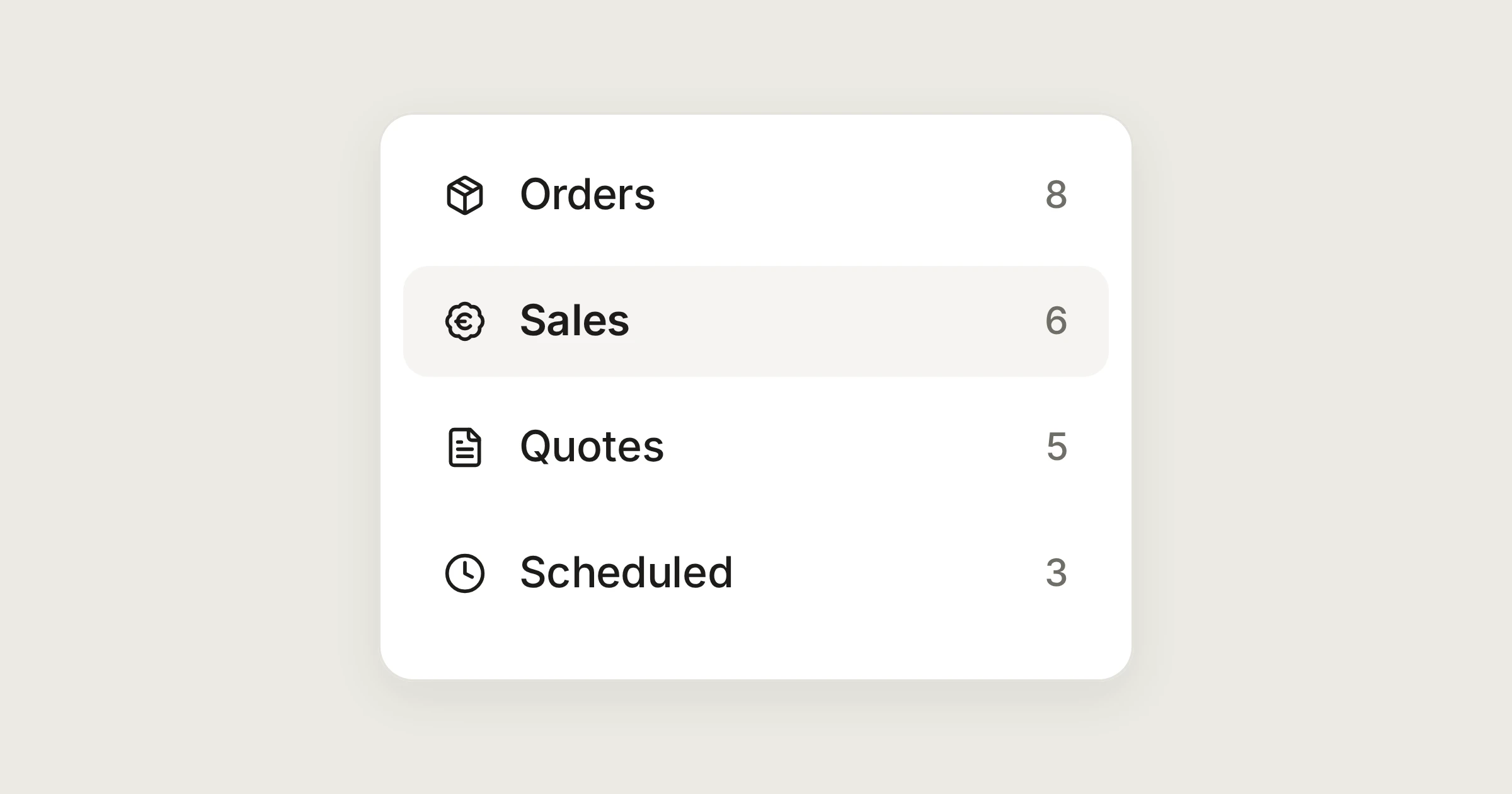
On this page
A customer asks for a price. Two colleagues see the email, both are helpful, and two different prices go out. The customer notices, and so does your margin. This is a morning on the sales desk of Aegean Freight, the demonstration organisation we use for examples, with orders@ and sales@. The customers are made up. The sales and orders page has the short version.
In short
You see who is writing a reply before you start your own, so a customer gets one answer.
Saved replies fill in the customer and the order. The details panel shows who you are writing to.
A chase-up is scheduled once, and goes out at the right time.
The two mailboxes
orders@ and sales@ are shared mailboxes for the sales team. Mail nobody has taken waits in each Inbox. A quote request belongs to one person from the first minute: Nikos opens a request from Alpenhof Trading for 40 pallets and chooses Assign to me. It becomes In progress and leaves the shared Inbox, and his face shows on its row. Maria, looking at the same list, sees that it is taken.
Seeing who is replying
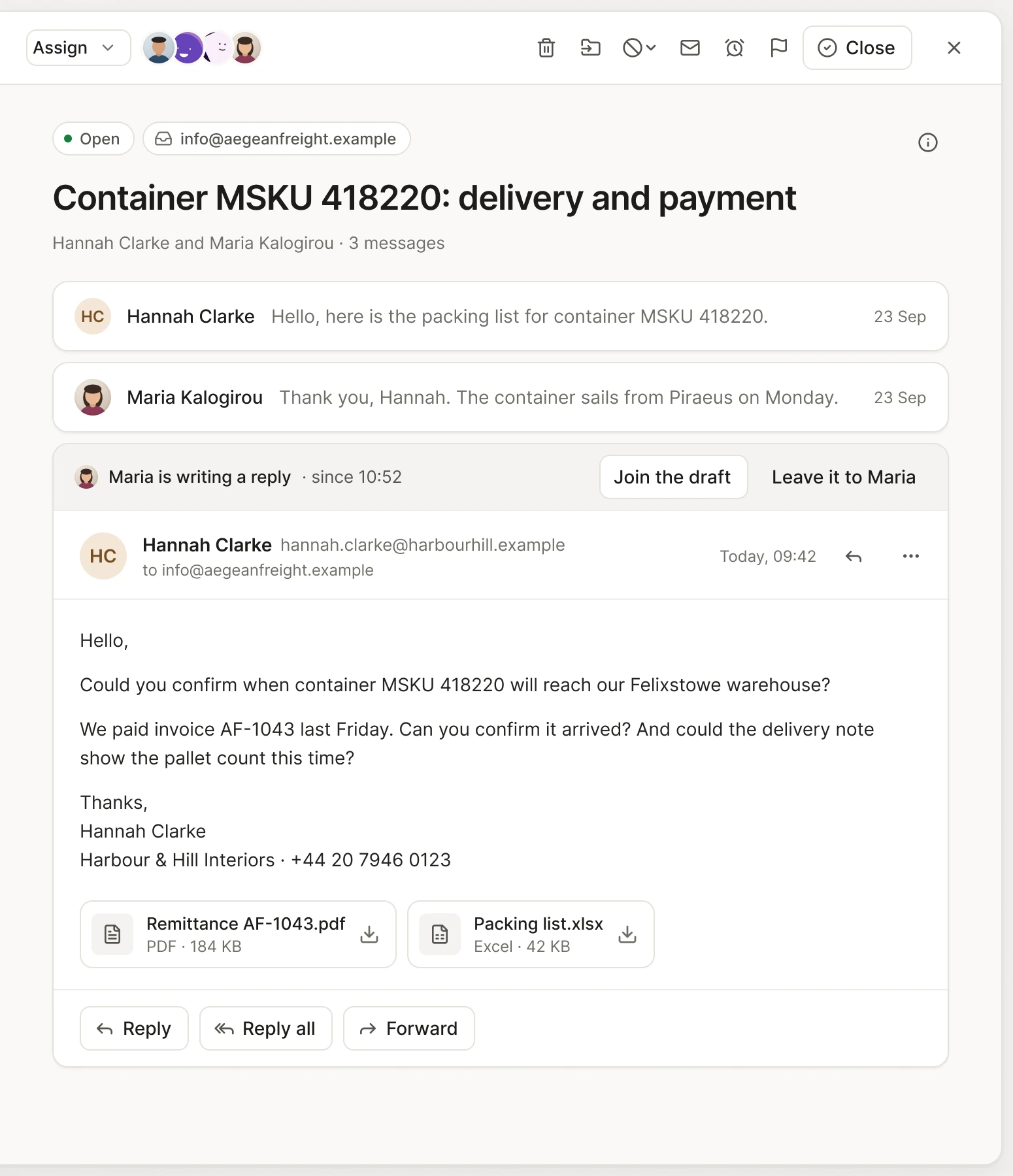
Taking it is not always enough. Maria opens a second conversation from the same customer about delivery dates. Before she types, the conversation's top bar shows who is looking at it. Once someone starts a reply, you see it:
"Nikos is writing a reply" appears on the message he is answering, and on its row in the list.
A band on that message tells you so if you start one too.
You can choose Join the draft and write it together, or Leave it to Nikos, which keeps what you typed as a draft.
If his reply goes out while you are writing yours, Send asks you first.
It is a warning, not a wall. You can still send, but you do it knowing. The who is replying page has the details.
Contacts and the details panel
Before pricing, look at who is asking. Press i in the conversation and the details panel opens beside it: the person's contact, your other conversations with them in every mailbox you can see, and the files you have exchanged. If Alpenhof Trading was quoted last month, the old quote is there, with the attachment one click away. If you sent them a file as a link, the panel lists it with how long it lasts and whether it was downloaded.
Someone who is not a contact yet can be added from the same panel. Contacts can also carry custom fields, such as an account number, which saved replies fill in. See the details panel.
Replies with the details filled in
An order confirmation says the same thing every time: the customer, the order number, the date. Make it a saved reply once:
Open Settings › Response templates and choose New template.
Write the text with blanks, such as
{{customer}}and{{order_number}}.In a reply, choose Saved replies, pick it, and choose Insert. DMU Mail asks for the two values, then puts the text in.
A blank you leave empty stays visible, so you see it before you send. Values that come from a contact are underlined until you edit them. Saved replies has the rest.
Chasing, without remembering
A quote nobody answers is a lost sale. After sending the quote, Nikos wants a nudge ready for tomorrow. In a message to the customer, he chooses the clock button next to Send and picks Tomorrow morning, which uses his default time (08:00 unless he changes it in Settings › Writing). The message waits in the Scheduled view until then. He can change the time, send it now, or cancel it, which brings it back as a draft. See Send later and undo send.
If the price on a message is wrong, Undo takes it back during the countdown after you press Send. The wait is up to 30 seconds, and you choose it in Settings › Writing.
Labels for the big accounts
Label the accounts you treat differently, such as VIP, or Quote sent for requests waiting on an answer. Labels can sit inside other labels, up to three levels. Everyone who can see the conversation sees the same labels, and a label never gives anyone access to a mailbox.
What the customer sees
One email from the address they wrote to, with one price. They do not see the assignment, the chat or who nearly answered. Behind it, the team talked in team chat under the email: Nikos asked @Maria to check a discount, and the customer never saw it.
When someone is away
If Nikos is on leave, his open quotes show under Assigned to others. Select them in the list and choose Assign to give them to Maria, if your administrator allows you to assign others (Settings › Permissions). The history shows what Nikos had already said, so Maria does not start from nothing. A chase-up he scheduled waits in the Scheduled view, and the bar at the top of the conversation says when it sends.
Share