Send later and undo send
Take a message back after you press Send, or choose the time it goes out.
Updated 24 October 2026 · 3 min read
Undo send
After you press Send, the message waits before it leaves. A notice shows a countdown with two buttons: Undo takes the message back, and Send now sends it straight away. If you do nothing, it goes when the countdown ends.
The wait is 30 seconds unless you change it. Open Settings, then Writing, and set Undo send to Off, 5, 10, 20 or 30 seconds. With Off, messages leave at once.
Send later
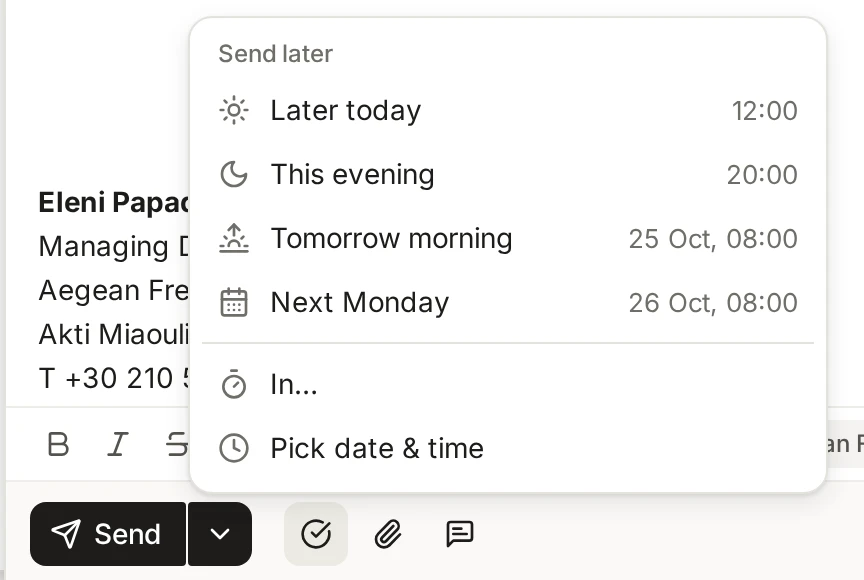
Choose the clock button next to Send and pick a time:
Later today: three hours from now, rounded up to the next quarter hour. Offered only while that is still before 19:00 today.
This evening: 20:00 today. Offered only before 18:00.
Tomorrow morning: at your default time.
Next Monday: at your default time. Not offered on Sundays.
In…: a number of hours, days, weeks or months from now. Choose Schedule to confirm.
Pick date & time: a calendar and a time. A time that has already passed is refused.
The default time is 08:00. Change it under Settings, then Writing, in “Default time for Send later”. Times are in the time zone of your computer.
Change or cancel a scheduled message
Scheduled messages wait in the Scheduled view in the sidebar. Open the conversation: a bar at the top says when it sends, with three buttons.
Change time: pick a new time.
Send now: sends it straight away.
Cancel: stops the send and reopens the message as a draft so you can carry on.
If the message has already gone, DMU Mail tells you so. The bar also says who set the time, because a colleague can schedule a message you wrote together.
Writing tips
Large files: attachments grow by about a third once they are attached to a message. Gmail, Outlook and most providers refuse a message over 25 MB, so DMU Mail warns you under the attachments when the total is probably too much. It is a warning, not a block. Send the files in separate messages, or make them smaller. One file can be up to 25 MB, and a message can carry 25 files.
Drag files in: drag files from your computer onto an open message to attach them. Folders cannot be attached, so zip them first. This is not available on phones and tablets.
Recipients: suggestions open once you type the first character in To, Cc or Bcc. They search people you have written to, then colleagues, by name or address.
See also Signatures, Saved replies and Labels, snooze and spam, which uses the same time picker.