One shipment, many emails: one logistics inbox
How a freight team runs bookings@, dispatch@ and customs@ together: who picks up what, how they talk about a load, and what the customer sees.
DMU Mail team· · 5 min read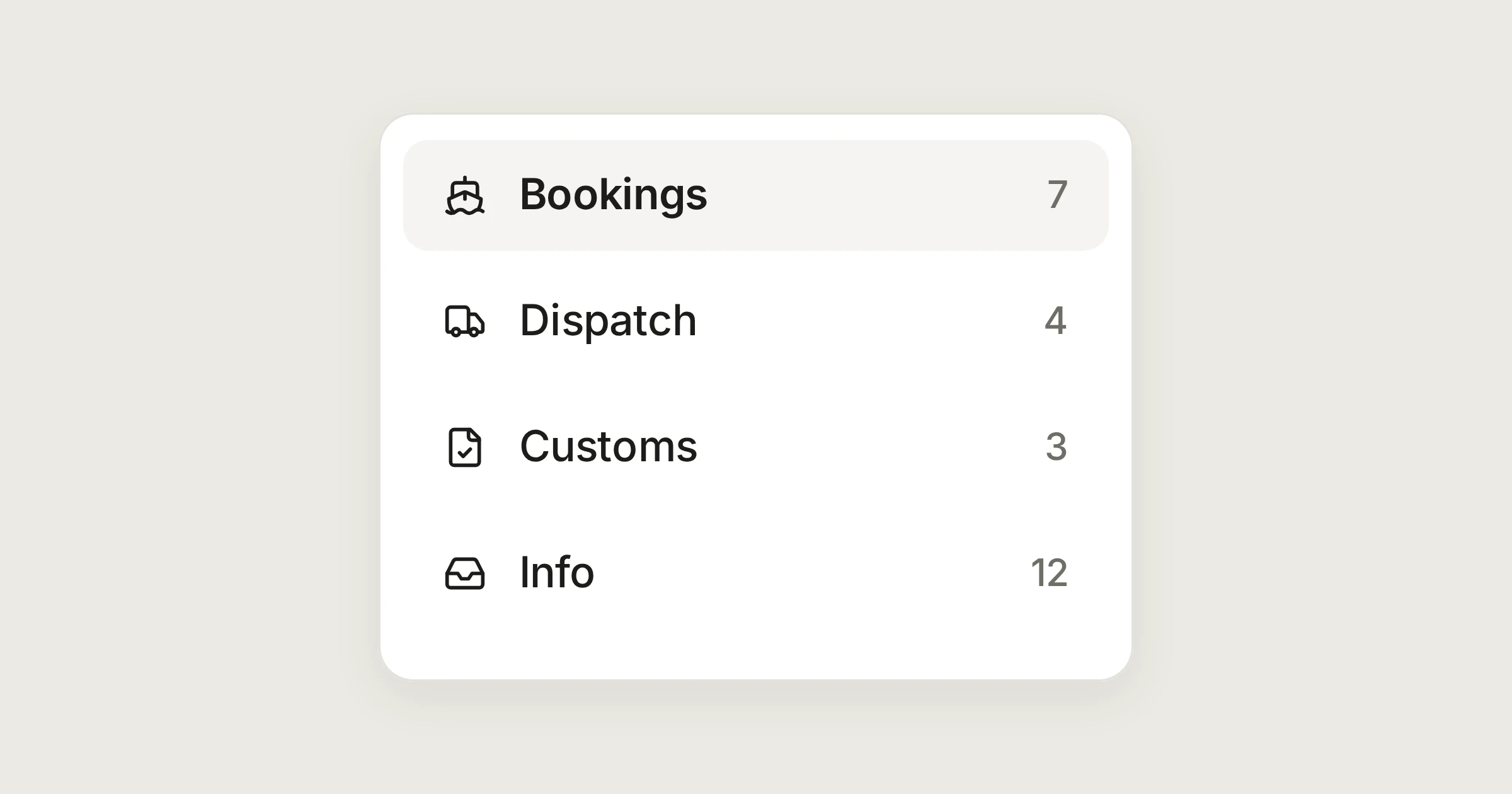
On this page
A single shipment can start a dozen emails. The booking is confirmed on one address, customs writes to another, and the driver asks a question on a third. This is a working day at Aegean Freight, the demonstration organisation we use for examples, with the three mailboxes that carry most of that mail: bookings@, dispatch@ and customs@. The people and partners here are made up. The operations and logistics page has the short version, and this is the longer one.
In short
Each address stays its own shared mailbox. The people who handle them read all three in one list.
Every shipment has one owner, and everyone can see who. Questions go to team chat, never to the customer.
A colleague who is away does not stall anything: someone else takes the conversation, and the history says where it stood.
Three mailboxes, one list
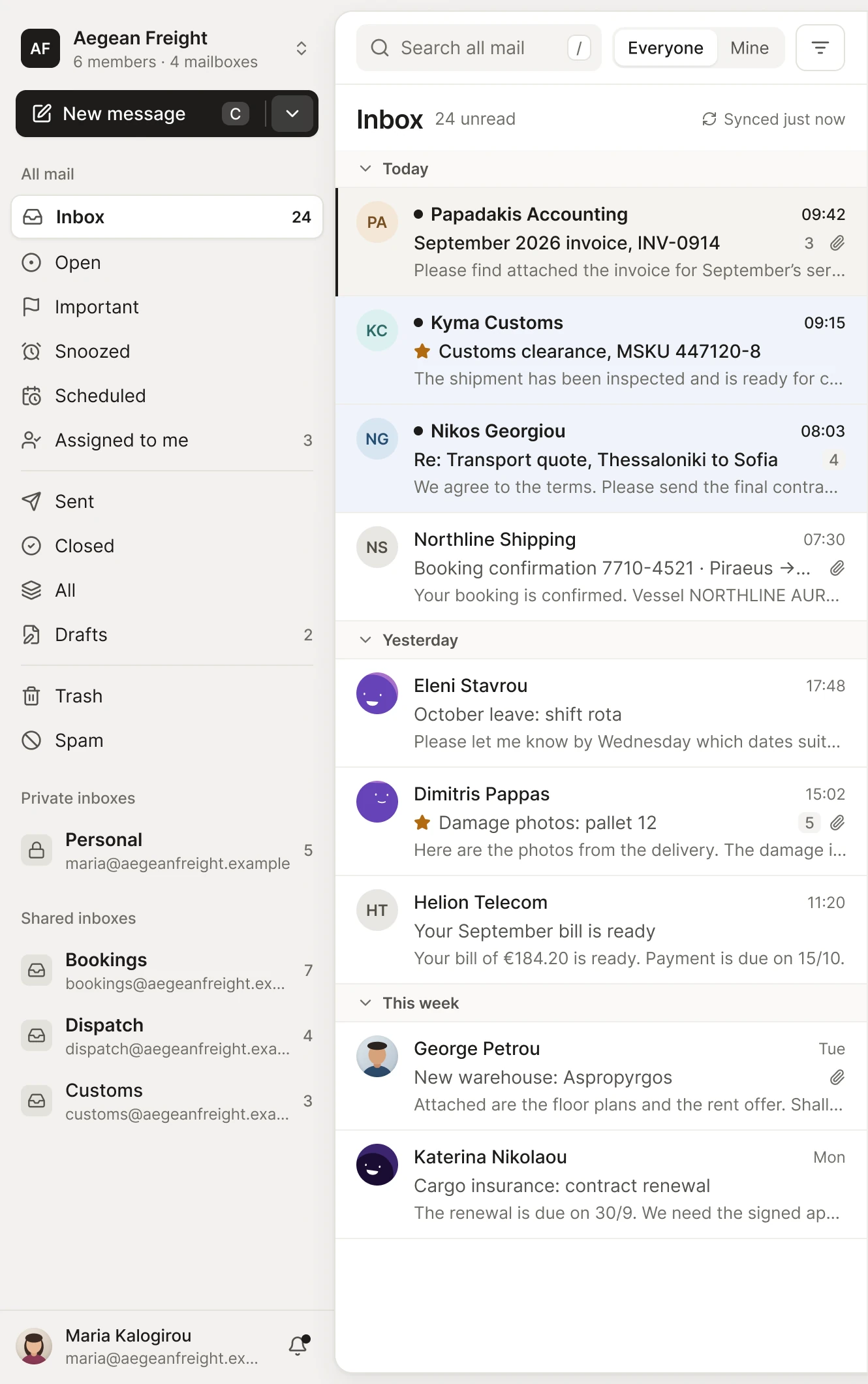
Each address is connected as a shared mailbox, so it appears under Shared inboxes in the sidebar. An administrator chooses who sees each one, in the mailbox's settings under Access: everyone, chosen teams, or chosen people. At Aegean Freight the logistics team sees all three.
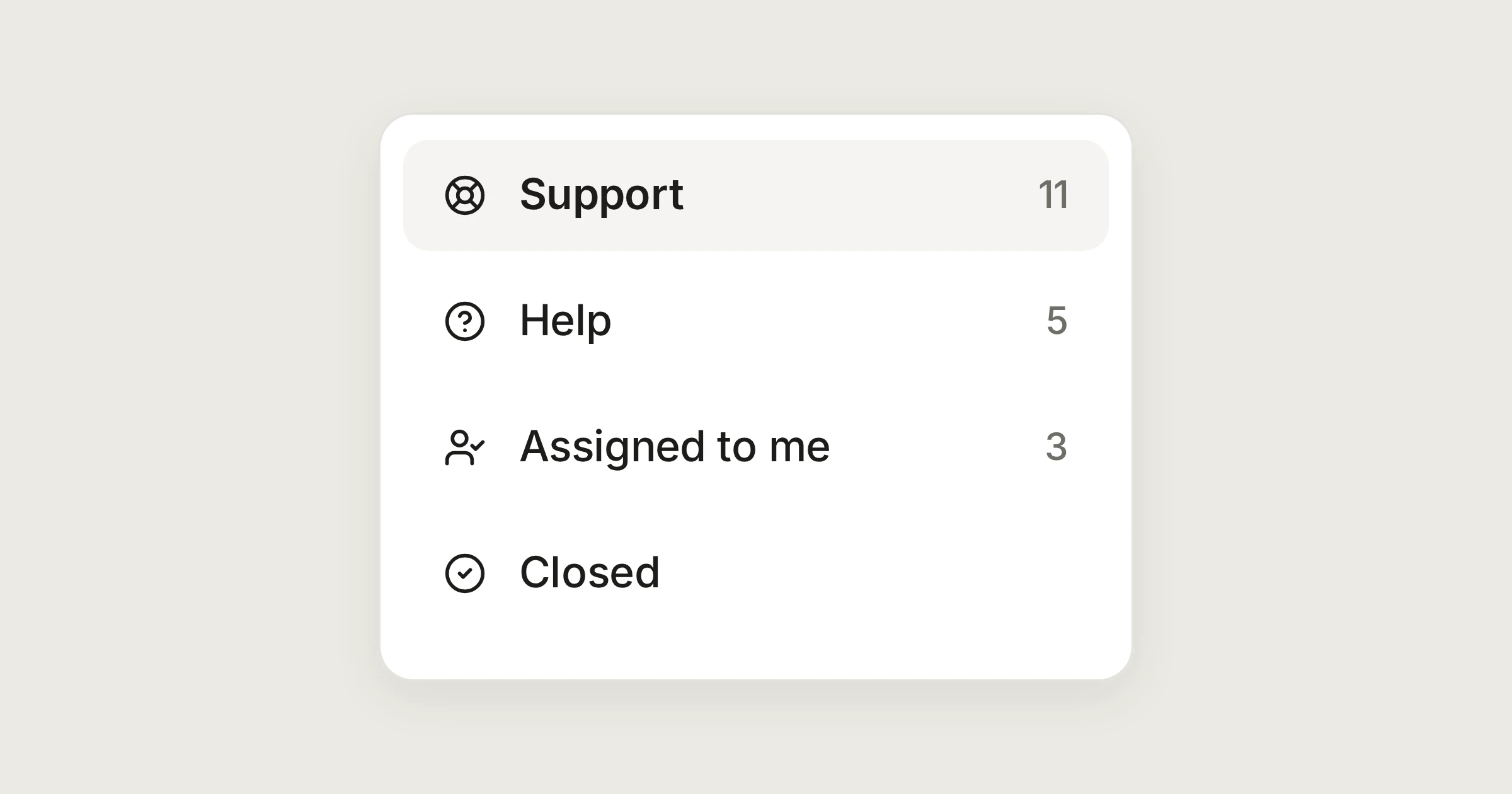
At the top of the sidebar, All mail gathers every mailbox you can see. New mail that nobody has taken waits in its own mailbox's Inbox, so the team can pick it up. Mail that someone has taken moves out of that Inbox and into their Assigned to me. For everyone else it is under Assigned to others.
If you want to read how access works, Shared and private inboxes covers it.
Who picks up what
The morning starts at bookings@. Northline Shipping confirms a vessel and the cut-off, and the message sits in the Inbox unassigned.
Open the conversation and choose Assign to me. It takes one click.
The conversation becomes In progress and leaves the shared Inbox. Your face shows on its row in the list.
When someone else needs to help, choose Assign and tick a second name. A conversation can have several assignees.
Later, Kyma Customs writes to customs@ about a clearance. George already owns that shipment, so he takes this conversation too, and the history shows who took it. Assigning is also what stops two people answering: you see the owner before you start typing.
Anyone can assign a conversation to themselves. Administrators choose who may assign one to someone else, under Settings › Permissions. By default everyone may.
For the routine, an automation can give new bookings to the team in turn. That is set up once in Settings › Automations, and the automations page shows what it can do.
Labels per customer, search for the rest
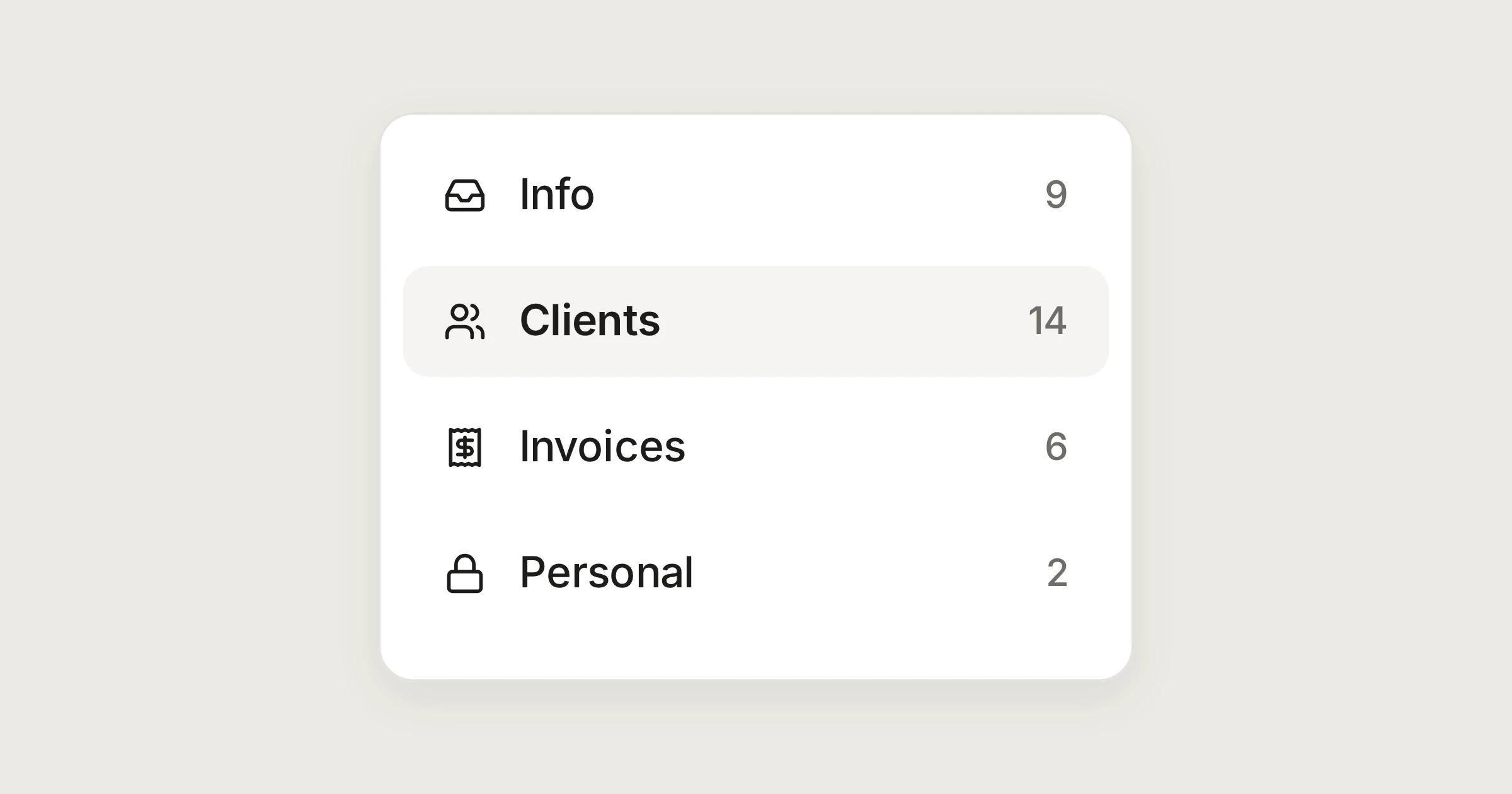
Give each customer a label, with the shipments inside it if you like. Labels can sit inside other labels, up to three levels, so Clients can hold Kyma Customs and Alpenhof Trading. Press l on a conversation to tick the labels it needs. Everyone who can see the conversation sees them, and a label never gives anyone access to a mailbox.
To find a shipment later, search for its booking reference. Search looks at subjects, the text of messages, sender and recipient names and addresses, and attachment file names, across the mailboxes you can see. It matches words, so type the whole reference rather than a piece of it. To stay inside one customer, add label:"Clients/Kyma Customs" to the search.
Asking the office, not the customer
Under the email, next to the Reply tab, is Team chat. Before George answers a customer about a rate, he writes to the team there:
Choose Team chat under the email.
Type
@and pick Maria from accounts.Ask her to check the invoice, and press Enter.
Maria is notified. She can open that one conversation even if she cannot see the mailbox, and the chat is never sent to the customer. A new message in team chat brings the conversation to the top of the list for the people involved, so the question is not lost. The team chat page lists what else it can do.
When two people open the same conversation, their faces show in its top bar. If Eleni starts a reply, George sees "Eleni is writing a reply" on the message she is answering, and can choose Join the draft or Leave it to Eleni.
What the customer sees
An ordinary email. Kyma Customs writes to customs@aegeanfreight.example and gets a reply from that address. Replies go out from the address the message was sent to, so a customer never meets a personal address by accident. There is no portal and no reference number, and team chat stays inside.
When someone is away
Eleni is on leave for a week. Her open shipments are still in her name, and everyone else sees them under Assigned to others.
Filter the list by her name and select the open conversations.
Choose Assign and tick whoever covers. Click Eleni's tick to take her name off.
Each conversation's history records who took it and when, so the new owner reads the situation without a phone call.
It is the same at the shift change. The evening team opens the day's conversations, reads the history among the messages, and carries on.
Name things after the work
Share