Connect a Gmail or Microsoft 365 mailbox
For Gmail, Google Workspace, Outlook.com and Microsoft 365 you sign in with Google or Microsoft. There is no password to enter and no server to set up.
Updated 24 October 2026 · 4 min read
Connect with Google or Microsoft
This works for Gmail and Google Workspace (Google), and for Outlook.com and Microsoft 365 (Microsoft). DMU Mail never sees the mailbox’s password. Google or Microsoft gives it permission to read and send mail, and DMU Mail stores that permission encrypted.
Open Settings, then Mailboxes, and choose Add a mailbox.
Enter the address. DMU Mail checks who runs its mail. For a Gmail, Outlook.com, Google Workspace or Microsoft 365 address it shows “Continue with Google” or “Continue with Microsoft”. For another address that is hosted by Google or Microsoft, choose Connect with Google or Connect with Microsoft under “Mail hosted by Google or Microsoft?”.
A window from Google or Microsoft opens. Sign in as that address and allow DMU Mail to read, send and organise its mail. On a phone the same tab goes to the provider and comes back.
DMU Mail checks that it can read the mailbox and send from it, then the wizard moves on. Choose who can see the mailbox and how much history to import, then review and add it.
Choose Use a password instead if you would rather connect with an app password. That is the route in Connect a mailbox.
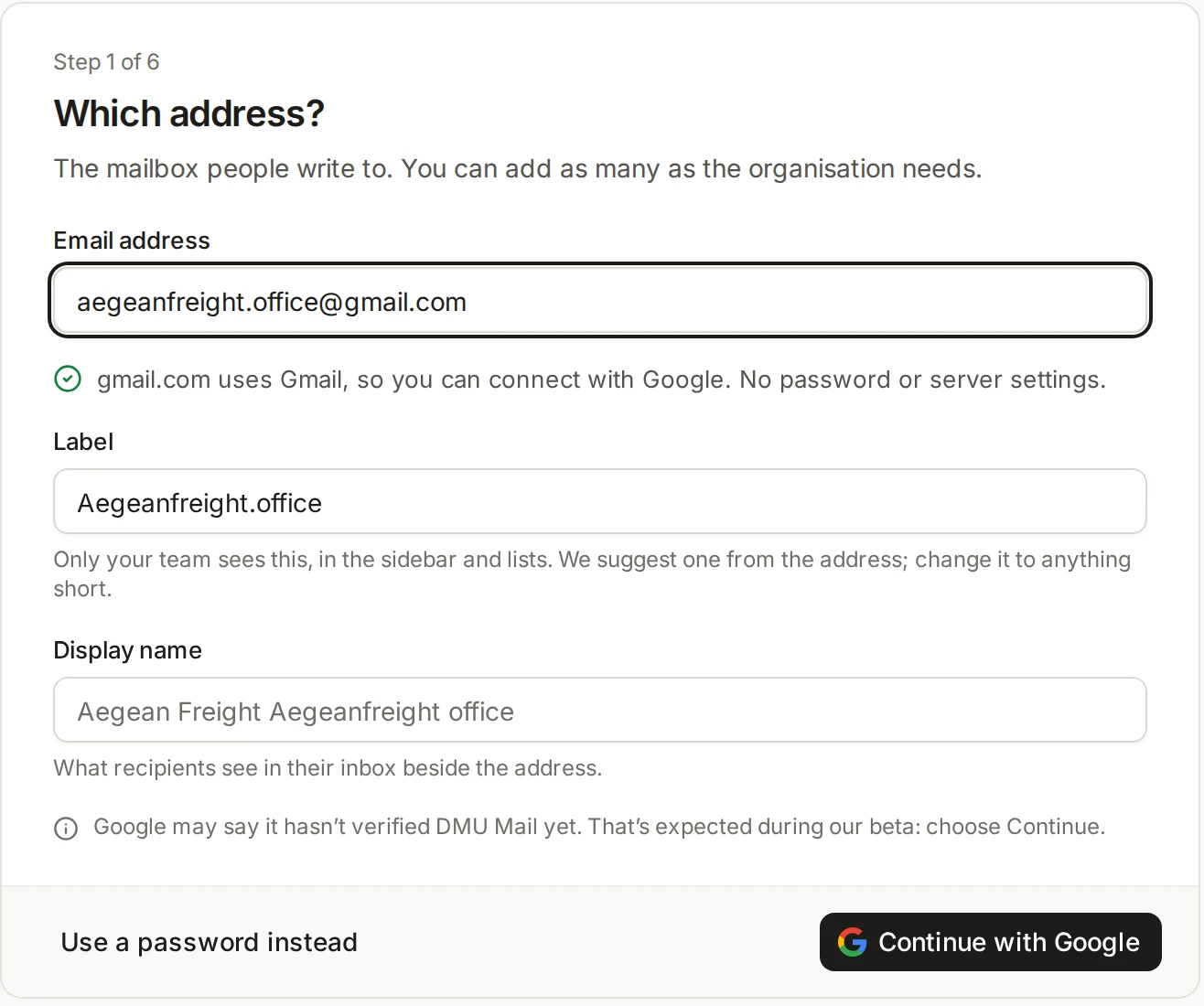
What you will see
Google has not yet verified DMU Mail, so Google may say it hasn’t verified the app. That is expected during our beta. Choose Continue, then allow the access it asks for. If you untick any of the permissions, DMU Mail cannot connect, because it needs to both read and send.
Sign in with the account that owns the address. If you pick a different one, DMU Mail tells you which account it got and offers to add that one instead or choose another.
Your password stays with Google or Microsoft
If an administrator has to act
With a work account, the organisation behind it can have rules of its own. DMU Mail shows what is needed:
Microsoft 365 may say an administrator has to approve DMU Mail. DMU Mail gives you an approval link to send them, with Copy link. Try again once they have approved it.
Reading works but sending does not, or the other way round. An administrator has to turn on Authenticated SMTP (Microsoft 365) or IMAP and sending (Google Workspace). DMU Mail shows the exact steps and a Copy the steps for your admin button to paste into an email.
Switch or reconnect
Switch a password mailbox: open Settings, then Mailboxes, and open the mailbox’s settings. Under Connection, choose Sign in with Google instead (or Microsoft). Syncing carries on from where it was and the stored password is dropped.
Reconnect: if Google or Microsoft withdraws access (the permission was removed, or the account’s password changed), a banner appears and the mailbox shows Fix connection. Choose Reconnect with Google (or Microsoft) and sign in again. Mail already in DMU Mail is safe, and syncing starts where it stopped.
Only administrators reconnect a shared mailbox. Everyone else sees whom to ask.