Teams
A team groups colleagues around a kind of work, such as Customer Service or Accounts. Filing a mailbox under a team keeps it to the people who answer it.
Updated 25 October 2026 · 3 min read
Create a team
Only administrators manage teams. Without teams, every shared mailbox is visible to everyone, which suits most companies.
Open Settings, then Teams, and choose Add a team.
Enter a name and, if you like, a description. Name it after the work, not the people, so it survives somebody leaving.
Choose Create team. The team opens on its Members tab.
Choose Add people, tick the colleagues, and choose Add.
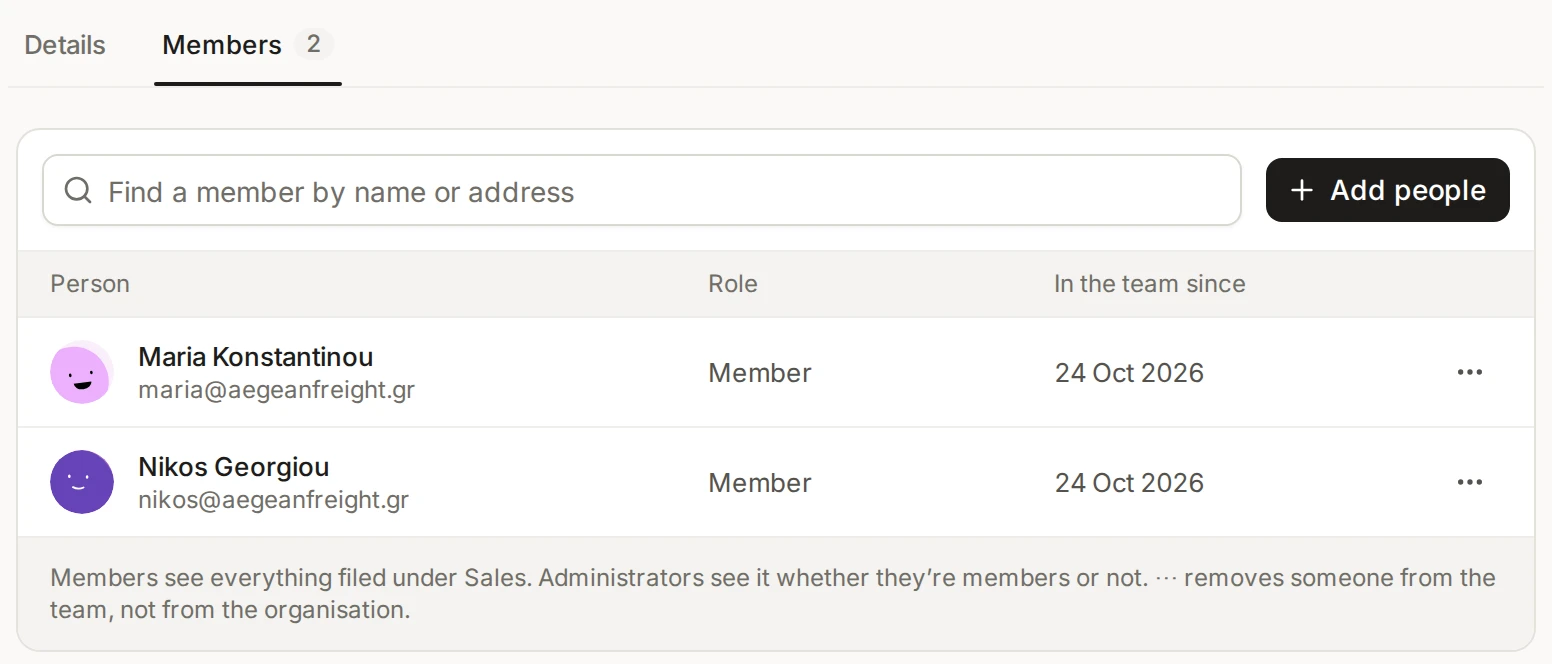
A team has two tabs. Details holds its name, description and what is filed under it, and Delete this team. Members lists people with their role and join date. ⋯ then Remove from the team takes someone out of the team only, and an Undo appears. There are no team leads: the Role column shows the person’s role in the organisation, and only administrators change a team.
What a team sees
Being in a team grants nothing by itself. A team’s members see what is filed under it, and administrators see it too.
Mailboxes: open the mailbox’s settings and, on the Access tab, tick the team. A mailbox can be shared with several teams. See Mailboxes.
Signatures can be made for a team. See Signatures.
Labels can be limited to a team.
Deleting a team deletes no mail. A mailbox shared only with that team becomes visible to everyone, one also shared with other teams or people keeps them, and signatures made only for that team are deleted. The dialog counts these first.
In the sidebar
Each person can add a team to their own sidebar: customise the sidebar, choose Add, then Item, and pick the team under Teams. Its view lists everything assigned to the team, and its count is the number of open conversations assigned to it. A search inside it stays in the team until you choose Search all mailboxes.