Signatures
A signature is added to your messages for you. Administrators can make signatures for the whole organisation or a team, and you can have your own.
Updated 24 October 2026 · 4 min read
In the composer
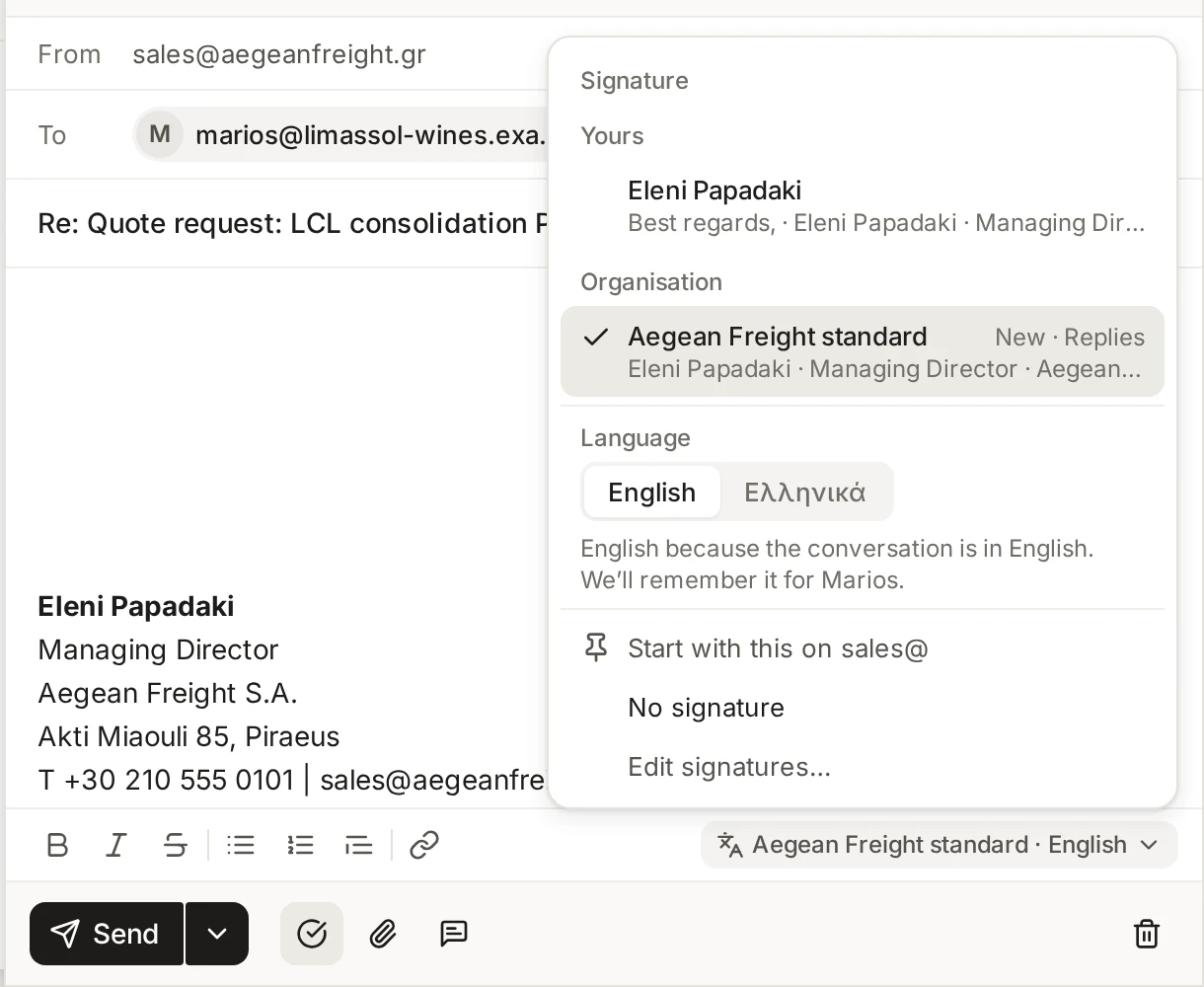
A new message or reply starts with the signature that applies to the address you send from. At the end of the formatting bar is the signature button, showing its name and language, such as “Full · English”. On a phone it is a pen icon. Choose it to change either one.
Signature: pick any signature you get, grouped as Yours and Organisation, or No signature.
Language: switch between English and Greek, when the signature has both. A language that has not been written yet is greyed out.
Start with this on an address: makes the signature you are using the one this address starts with from now on.
Edit signatures opens the Signatures settings.
You can switch at any time, also after you have started typing. The signature block is replaced where it is and the rest of the message stays as you wrote it. If you changed the text of the signature inside this message, DMU Mail asks “Replace the signature you edited?” and you can choose Replace or Keep mine.
The language is chosen for you in this order: what you picked for this message, what you used in your earlier replies in the conversation, a language you chose for that contact before, the language of the conversation, then your own fallback language. You set the fallback in Account, Profile. In a reply, a small notice under the signature says what your earlier replies used and offers to switch.
Settings, then Writing, lets you put the signature above or below the quoted message.
Who makes which
Open Settings, then Signatures. Every signature has a “Gets it” list: everyone, a team, one person, or whoever sends from a mailbox. It also says which addresses it starts new messages and replies on.
Administrators can make, change and delete every signature.
Members can make their own signatures, which only they get, while “Members can make their own signatures” is on in the Permissions tab. It is on by default.
Members can make signatures for others (a team, a person, a mailbox or everyone) only when an administrator turns on “Members can make signatures for others”. It is off by default.
A signature you only receive can be used and copied, not changed. Choose Duplicate as mine to make your own version.
When more than one signature could start the same address, the most personal one wins: your own choice, then one made for you, then for your team, then for the mailbox, then for everyone. You can have up to 20 of your own, and the organisation can have up to 50.
Writing a signature
Choose New signature. On the Signature tab, write it in English, Greek or both. A conversation in Greek gets the Greek one.
On Who gets it, choose Everyone, Only me, or Choose who and add teams, people or mailboxes.
Under Start with it, tick the addresses and whether it starts new messages, replies or both.
On Details, give it a name. Only colleagues see names. Recipients see the signature.
Choose Save.
Preview as shows the signature as it would look for a person you pick, in either language.
Variables and images
Use Insert variable to put a detail such as Job title into the text. Each person’s own value fills it in when they send, so one signature works for the whole team. A detail with no value is left out, and so is its line when nothing else is on it.
The starting variables are Name, Job title, Department, Sending address, Work phone, Mobile and Office. In the text they look like {{job_title}}. Administrators add, change and remove variables under Settings, then People, on the Variables tab. People fill in their own values under Account, Profile (when administrators allow it), and administrators can fill them in on People. The person is told when an administrator changes theirs.
To add a picture such as a logo, use the Image button, drag a file onto the signature, or paste it. PNG, JPG and GIF work, up to 1 MB, and large pictures are shrunk. A signature holds up to 5 images. Click a picture to set its size, link or alt text, or to replace it. Pictures are sent from DMU Mail’s own address, so every recipient gets the same file, and plain-text messages leave them out.
Logos with a see-through background