Notifications
DMU Mail tells you about work that needs you in three places: the bell, a banner in your browser, and the Windows app. Here is what triggers each and how to switch it off.
Updated 24 October 2026 · 3 min read
The bell
The bell in the sidebar keeps the full history. A dot shows there is something new, and opening the list marks everything as read. It records:
A conversation assigned to you, or taken off you.
A status change, such as closed or moved to spam, on a conversation assigned to you, made by someone else.
A mention in team chat.
A message you sent that could not be delivered.
A mailbox that stopped sending (administrators only).
A change an administrator made to your details.
You are never notified about your own actions. New mail is not in the bell, because the unread counts in the sidebar already show it. DMU Mail does not send notification emails.
When a conversation has an assignee, the news goes to them. When nobody has it, new mail goes to everyone who can see the mailbox.
Browser banners
Open Settings, then Notifications.
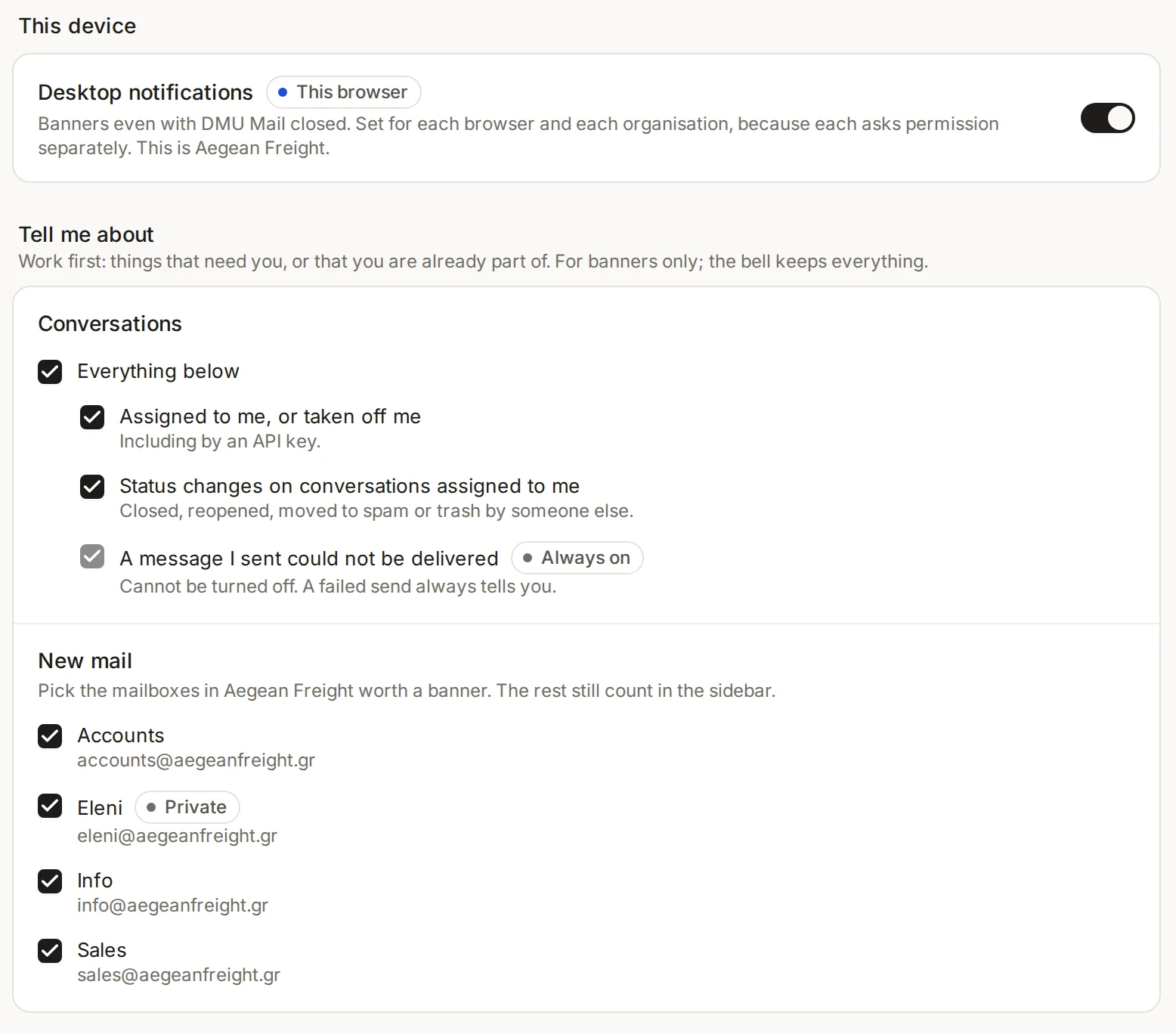
Turn on Desktop notifications. The browser asks for permission once. Choose Allow.
Under Tell me about, choose what earns a banner.
Banners work even when DMU Mail is closed. The switch is for this browser and this organisation only. If you belong to several organisations, or use several browsers, turn it on in each. If the browser says it is blocking notifications, allow them in the browser’s site settings (usually behind the icon at the left of the address bar) and reload the page. Your devices are listed below the choices, and you can remove one you no longer use.
Assigned to me, or taken off me: on by default.
Status changes on conversations assigned to me: on by default.
New mail: ticked for each mailbox you can see. Untick a mailbox to stop its banners. There is no single switch for all new mail, so untick each mailbox, or use quiet hours.
A message I sent could not be delivered: always on.
Mentions: always on.
Quiet hours: choose the hours, the days, and whether weekends stay quiet all day. No banners are shown then. Nothing is lost, because the bell and the inbox keep it all.
The Windows app
The Desktop app for Windows shows Windows notifications for new mail, mentions and assignments, and a count on the taskbar. Open Settings, then Desktop app, to turn them off, to choose how much a notification shows (sender, subject, start of the message) and to turn the sound on or off. The choices under Notifications, such as mailboxes and quiet hours, apply to the app too. In the tray, you can pause notifications for an hour or until tomorrow morning.
Inside the app, the Notifications page does not show the browser switch, because the app does the job.
Several organisations, and doubles
The bell shows the organisation you have open. Your other organisations are listed in the organisation switcher at the top of the sidebar, each with its unread count. The browser switch and the new-mail mailbox choices are set for the organisation that is open, so check Settings, then Notifications, in each one.
Getting every notification twice?
Phones and browsers on other computers are not affected. They keep their banners.