People and roles
Every person in your organisation is an administrator or a member. This page shows what each can do, and how to change roles, suspend or remove someone, and keep a record of changes.
Updated 25 October 2026 · 4 min read
The two roles
Members read and answer mail. Administrators also run the organisation. There is no separate owner: whoever created the organisation is its first administrator, and every administrator can do the same things. An organisation always keeps at least one.
| What | Administrator | Member |
|---|---|---|
| Read and answer mail in mailboxes they can see | Yes | Yes |
| Assign conversations and chat with colleagues | Yes | Yes |
| Add a private mailbox of their own | Yes | Yes |
| See every shared mailbox, whoever it’s shared with | Yes | Only those shared with everyone, their teams or them |
| Read a colleague’s private mailbox | No | No |
| Add, change, pause or delete shared mailboxes | Yes | No |
| Invite, suspend or remove people; change roles | Yes | No |
| Create teams and choose who is in them | Yes | No |
| Organisation details, sign-in rules, Activity, API keys, Plan and billing | Yes | No |
| Choose when old mail is deleted | Yes | See it only |
| Make signatures for others; trust or block senders for everyone | Yes | Only if the organisation allows it |
Read and answer mail in mailboxes they can see
AdministratorYes
MemberYes
Assign conversations and chat with colleagues
AdministratorYes
MemberYes
Add a private mailbox of their own
AdministratorYes
MemberYes
See every shared mailbox, whoever it’s shared with
AdministratorYes
MemberOnly those shared with everyone, their teams or them
Read a colleague’s private mailbox
AdministratorNo
MemberNo
Add, change, pause or delete shared mailboxes
AdministratorYes
MemberNo
Invite, suspend or remove people; change roles
AdministratorYes
MemberNo
Create teams and choose who is in them
AdministratorYes
MemberNo
Organisation details, sign-in rules, Activity, API keys, Plan and billing
AdministratorYes
MemberNo
Choose when old mail is deleted
AdministratorYes
MemberSee it only
Make signatures for others; trust or block senders for everyone
AdministratorYes
MemberOnly if the organisation allows it
Administrators see that a colleague’s private mailbox exists, whose it is and whether it is connected. They never see its mail or settings. Members can open People to see a read-only list of colleagues.
Managing people
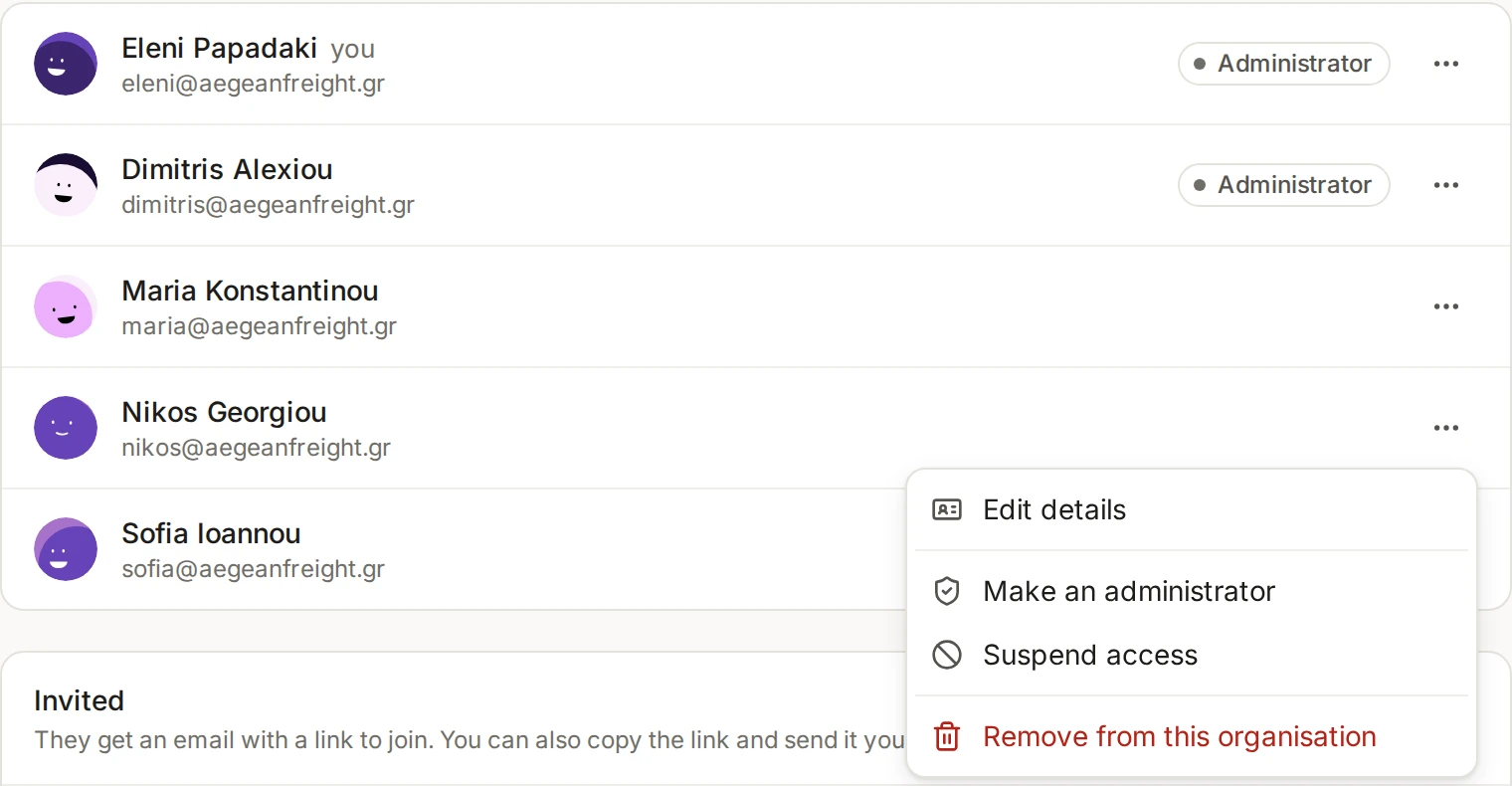
Open Settings, then People. Each person has a ⋯ menu, and the Invited list shows who is still waiting (see Invite people and choose their role).
Change a role with Make an administrator or Make a member. The change is immediate.
Suspend access stops someone signing in to the organisation at once and revokes their API keys, which do not come back. Their mail and conversations stay. Restore access lets them in again.
You can’t suspend or remove yourself, and nobody can demote, suspend or remove the only administrator. Make someone else an administrator first.
Handing over administration
When someone leaves
Choose Remove from this organisation. The dialog lists what goes with the person before you confirm. You can invite them again later, and they come back in no team.
Their private mailboxes are deleted with all their mail. Mail at the provider is not touched. A person can share a private mailbox with the organisation first.
Their unsent drafts and scheduled messages, personal signatures and notes are deleted.
Conversations assigned to them stay assigned, and show their name as “a former member”. Unassign them by hand.
Mail they sent, shared labels, templates and signatures, and team chat messages stay with the organisation.
They leave their teams, and their API keys are revoked.
Sign-in rules and Activity
To require two-step verification for everyone, administrators included, open Settings, then Details, then the Security tab. Turn on Require two-step verification. People without it are asked to set it up at their next sign-in, and a passkey counts (see Two-step verification). The same tab chooses the allowed sign-in methods and when idle sessions end.
Settings, then Activity lists who changed what: invitations, role changes, removals, mailboxes and more. Filter by person, category or dates, search, or choose Export CSV. The page says how long entries are kept.