Desktop app for Windows
DMU Mail for Windows is the same app in its own window, with an unread count on the taskbar, a tray icon and Windows notifications.
Updated 24 October 2026 · 3 min read
Install it
Go to dmu.email/download and choose Download for Windows. It needs Windows 10 or 11, 64-bit.
Open the file you downloaded, DMU-Mail-setup.exe. It installs for you alone, so you do not need an administrator.
Sign in with your usual details. Your mail and settings are the same as in the browser.
Windows may warn you
There is no Mac app yet, and no phone app. Until then DMU Mail works in the browser on those, and the download page shows how to add it to your Dock or home screen.
The tray and the taskbar
Closing the window leaves DMU Mail running in the tray, near the clock, so notifications and the count keep working. Click the icon to open it again.
The taskbar button shows how many conversations in your Inbox are unread. With the window closed to the tray, the tray icon shows the count.
Right-click the tray icon for Open DMU Mail, New message, Pause notifications, Settings and Quit DMU Mail. Pause notifications can last 1 hour, until 08:00 tomorrow, or until you resume them.
Quit DMU Mail from the tray when you want it to stop completely.
Windows notifications cover new mail, mentions and assignments. Which conversations notify you is set in Notifications, and Windows Do not disturb and Focus are respected.
Settings for the desktop app
Open Settings, then Desktop app. The page only exists inside the app, not in a browser.
- Startup and tray
- Start DMU Mail when Windows starts (it starts in the tray), keep running when you close the window, and show the unread count on the taskbar icon.
- Notifications
- Turn Windows notifications on or off, and play a sound or not. Choose what a notification shows: the sender only; the sender and the subject; or the sender, the subject and the start of the message, which is the default.
- Default mail app
- Makes email links on websites and in other programs open a new message in DMU Mail. Windows does not let apps do this themselves. Choose Open Windows Settings, find MAILTO and choose DMU Mail. You need a mailbox to write from.
- Updates
- Shows the version and lets you Check for updates.
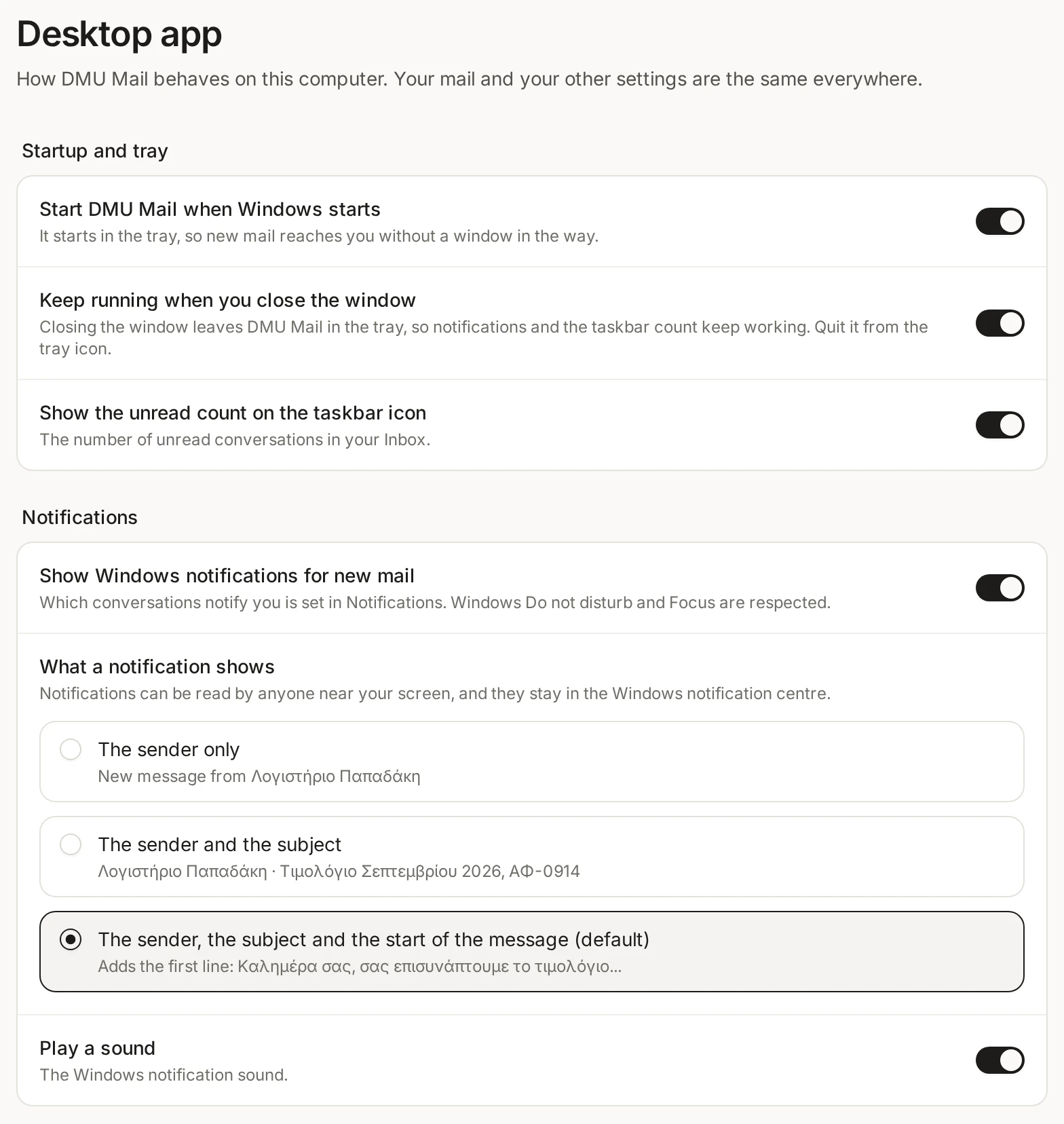
Notifications can be read by others
Updates and uninstalling
DMU Mail updates itself in the background and asks before it restarts. Choose Restart now when it suits you. Your drafts are saved first. Screens and features come from the web app, so most changes reach you without any update at all.
To remove it, open Windows Settings, then Apps, find DMU Mail and choose Uninstall. The uninstaller offers to delete the app’s data on this PC as well. Your mail stays in your organisation either way.