Passkeys
A passkey lets you sign in with the same thing that unlocks your device, so there is no password to type or leak.
Updated 24 October 2026 · 3 min read
What a passkey is
A passkey is a sign-in that lives on your device and opens with Windows Hello, Face ID, a fingerprint, or a security key. DMU Mail never holds a secret that someone could steal and reuse, and a fake website can’t trick you into handing one over.
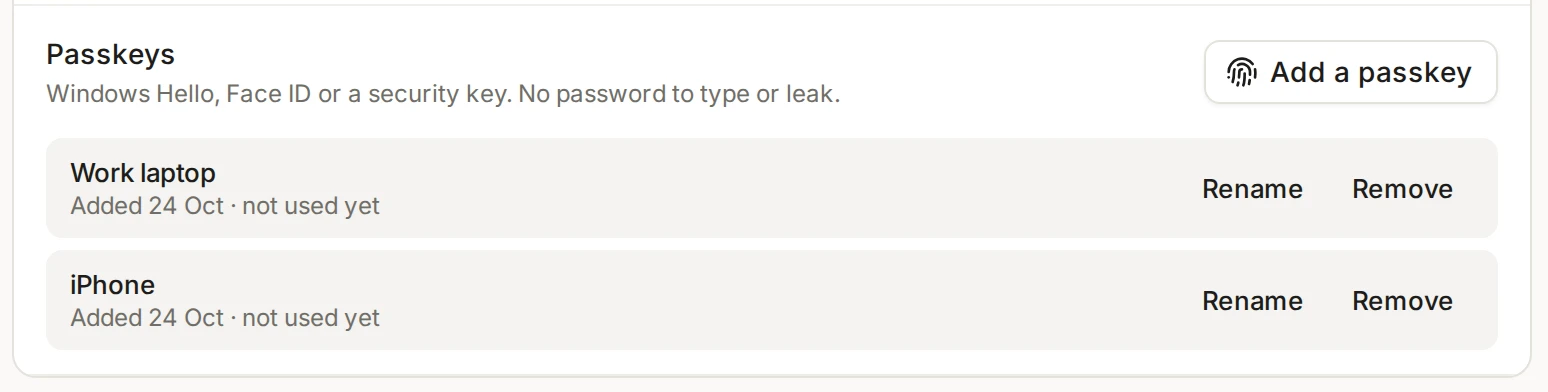
Add a passkey
Open Settings, then Account, then the Security tab.
On the Passkeys row, choose Add a passkey.
Your device asks you to confirm, with your face, fingerprint, PIN or security key.
Name it, for example “Work laptop” or “iPhone”, and choose Save. The name helps you tell passkeys apart later.
If you see “This browser cannot make passkeys”, try a current version of Chrome, Edge, Safari or Firefox.
Sign in with it
On the sign-in page, enter your email address and choose Sign in with a passkey. Your device asks you to confirm, and you’re in. There is no code afterwards: a passkey already counts as two steps, because it needs your device and you.
A passkey doesn’t replace two-step verification when you sign in with a password. If you have an authenticator app set up, a password sign-in still asks for its code, and you may choose to use a passkey there instead.
Keep two ways in
Several devices, and removing one
Add a passkey on each computer and phone you sign in from. The list under Passkeys shows each one’s name, when it was added and when it was last used.
To rename one, choose Rename next to it.
To remove one, choose Remove and confirm. You can’t sign in with it any more. Remove it from the device too, in the device’s own passkey settings.
Lost a laptop? Remove its passkey here, then change your password. Other devices are signed out when you do.
An administrator can also limit which ways people may sign in. If a passkey isn’t allowed, DMU Mail says so and offers the ways that are.