Two-step verification
Two-step verification asks for a code from your phone after your password, so a stolen password alone is no use to anyone.
Updated 24 October 2026 · 4 min read
Turn it on
You need an authenticator app on your phone. Google Authenticator, Microsoft Authenticator and 1Password all work. Then:
Open Settings, then Account, then the Security tab.
On the Two-step verification row, choose Set up.
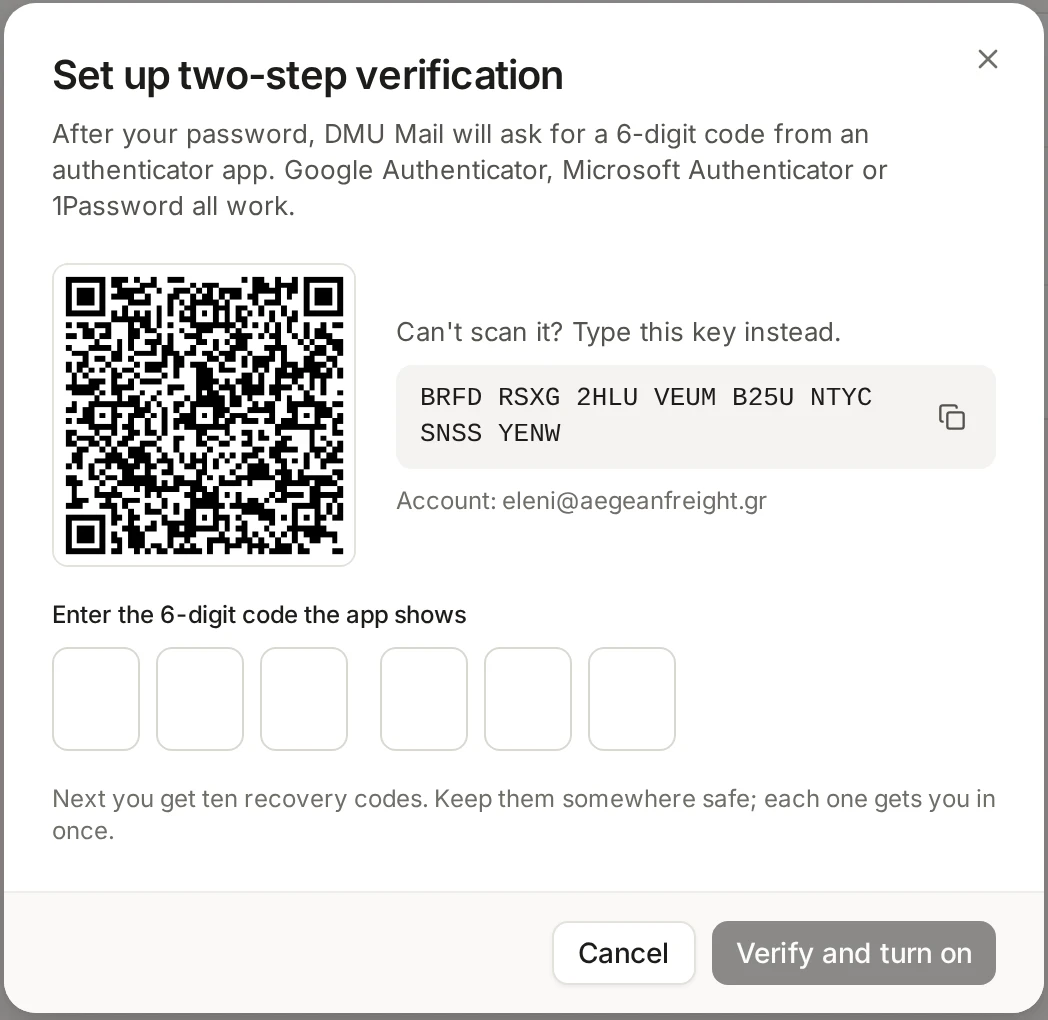
Scan the QR code with your authenticator app. If you can’t scan it, choose “Can’t scan it? Type this key instead” and enter the key by hand.
Type the 6-digit code the app shows, and choose Verify and turn on.
DMU Mail shows ten recovery codes. Copy them or download them as a text file, keep them somewhere safe, and choose “I’ve saved these somewhere safe”.
If the code is refused, check that your phone’s clock is set automatically. The codes depend on the right time.
Signing in with it
Sign in as usual. After your password is accepted, DMU Mail asks for “Enter your code”. Open the app and type the current 6-digit code. Codes change every 30 seconds, so use the newest one. Five wrong codes end the attempt, and you sign in again from the start.
Leave “Trust this browser for 30 days” ticked on your own computer and DMU Mail won’t ask again there for a month. Untick it on a shared computer.
The same step applies when you sign in with Google or Microsoft. Their sign-in is the first step and your code is the second. A passkey is different: it already counts as two steps, so signing in with one asks for no code. See Passkeys.
If you lose your phone
On the code screen, choose “Use a recovery code” and type one of the ten codes you saved. Each code works once. Once you are in, open Settings, then Account, then Security. Choose Manage, then “Set up on a new phone”, and enter your password. Your old authenticator stops working at once, and two-step verification stays off until you finish on the new phone.
Running low on codes?
Turn it off, or require it
To turn it off, open Settings, then Account, then Security. Choose Manage, then Turn off, and enter your password. You then sign in with the password alone, and your recovery codes stop working.
An organisation’s administrator can require two-step verification for everyone, administrators included. People without it are asked to set it up at their next sign-in, and a passkey counts. While an organisation requires it, Turn off is greyed out and says “Required by” the organisation’s name, unless you have a passkey. The administrator’s side is in People and roles.