Import your mail history
When you connect a mailbox, DMU Mail can bring across the mail already in it. You can do it then, or later from the mailbox’s row.
Updated 24 October 2026 · 2 min read
When you connect
The wizard’s Import step asks “Bring existing mail?”. Choose Import existing mail and how far back to go: Everything, Last year, 6 months or Last month. Or choose Start fresh to get only mail that arrives from now on.
Nothing on your provider is moved or deleted. DMU Mail only copies.
The import runs in the background after the mailbox is added, newest first, so recent mail appears almost at once.
Imported mail arrives marked as read.
Import more later
Open Settings, then Mailboxes, and choose Import on the mailbox’s row.
Tick the Folders to import. Folders with mail are ticked for you, but not Trash or Spam.
For each folder, choose where its mail goes: Inbox, Closed, Trash or Spam, and add a label if you like. Archive folders go to Closed by default, so the Inbox only gets what was in the server’s inbox. Sent mail is filed as sent and drafts as drafts.
Choose How far back, then Start import.
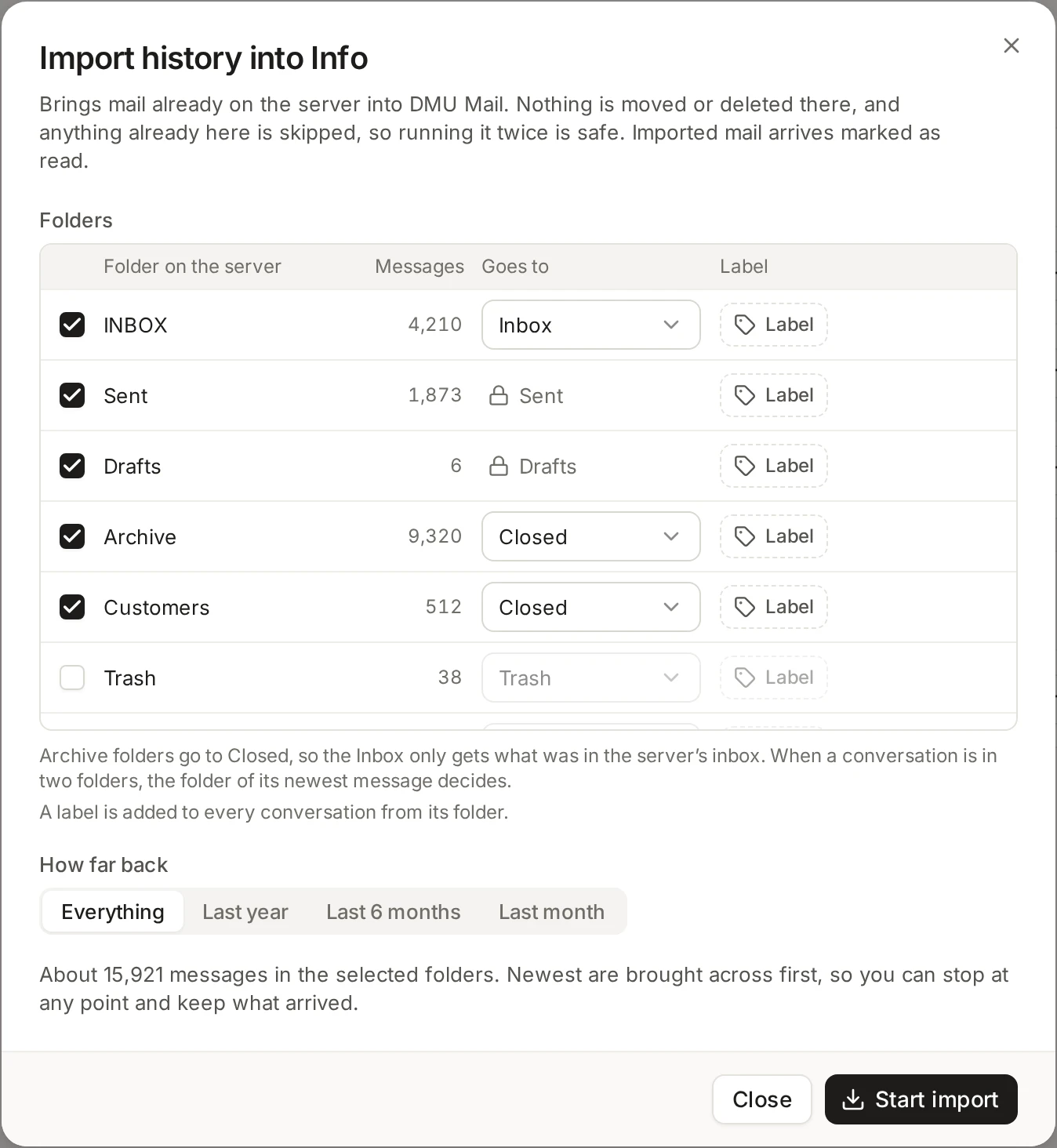
Run it as often as you like: anything already in DMU Mail is skipped, so nothing is duplicated. Import is on the row of any mailbox you manage: administrators for shared mailboxes, and the owner for a private one.
While it runs
You can close the page or carry on working. The import keeps going on our side.
The Mailboxes list shows Importing with a percentage beside the Import button, and the sidebar marks the mailbox as importing.
Choose Stop in the import panel to end it. It stops after the current batch, and whatever has arrived stays.
The panel keeps a list of earlier imports, with how many messages were imported, were already there, or had problems.
New mail arrives by itself
Need to connect the mailbox first? See Connect a mailbox or Connect a Gmail or Microsoft 365 mailbox.