Invite people and choose their role
Invite a colleague by email, choose whether they join as a member or an administrator, and send the invitation again or cancel it if plans change.
Updated 24 October 2026 · 4 min read
Send an invitation
Only administrators can invite people.
Open Settings, then People, and choose Invite.
Enter one email address.
Choose a Role: Member reads and answers mail. Administrator also manages mailboxes and people. See People and roles.
Choose Send invitation.
The form takes one address at a time, so repeat it for each person. It does not offer teams. A new person starts in no team, and you add them under Teams once they have joined. If the address is already in your organisation, you are told so.
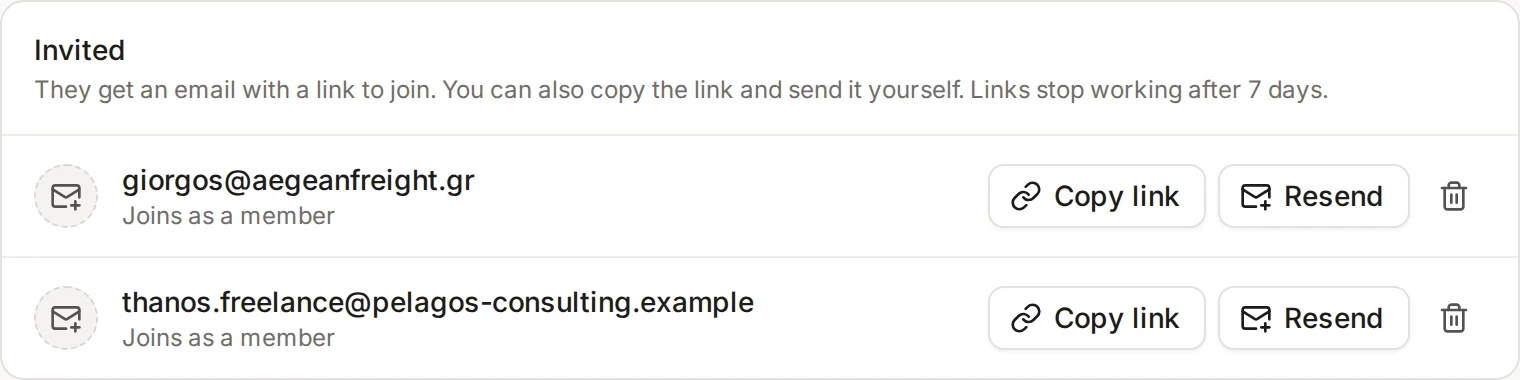
The person appears under Invited with “Joins as a member” or “Joins as an administrator”. To change a pending role, cancel the invitation and send a new one. Once they have joined, use People and roles.
Copy the link instead
Next to Resend, Copy link puts an invitation link on your clipboard, so you can send it by chat or message. It works only for the invited address. Whoever opens it sees “Join” with your organisation’s name, and a 6-digit code is emailed to the invited address. They type it to prove the address is theirs, and then they choose a password. The code works for 10 minutes, and only the newest one works. Someone who already has an account signs in instead. Copying again gives the same link, and Activity records each copy.
Resend, cancel and expiry
Resend emails a fresh link and starts the 7 days again. Links sent or copied earlier stop working.
The bin button cancels the invitation, and both its links stop working.
An invitation lasts 7 days from when it was sent or last resent. After that the link doesn’t work, and signing in doesn’t make the person a member. Choose Resend.
An invitation holds a place for a member from the moment it is sent. If sending is refused for lack of room, cancel an invitation you no longer need or write to support@dmu.email. See Plan and billing.
What the invited person sees
Someone new gets an email with a link. They add their name and choose a password. Someone with a DMU Mail account is told by email, and finds your organisation in their list the next time they open DMU Mail. Either way, they join with the role you chose. They see only the mailboxes open to everyone until you add them to teams. The first steps for them are in Invite your team.