Pictures in a message
Put a picture in the body of an email, choose its size and give it alt text. DMU Mail makes it small enough to arrive quickly.
Updated 1 November 2026 · 3 min read
Add a picture
Choose Image in the row of buttons under the message, after Link, and pick a picture.
Paste a picture you have copied. It goes in at the cursor.
Drag pictures onto the message. If everything you drag is a picture, DMU Mail shows two places to drop them: the message, where the line is, or the strip below it, to attach them instead. If any of the files isn’t a picture, everything is attached.
A picture sits on its own line. Mail apps don’t reliably show text wrapped round a picture, so DMU Mail doesn’t offer it.
Size, alt text and removing
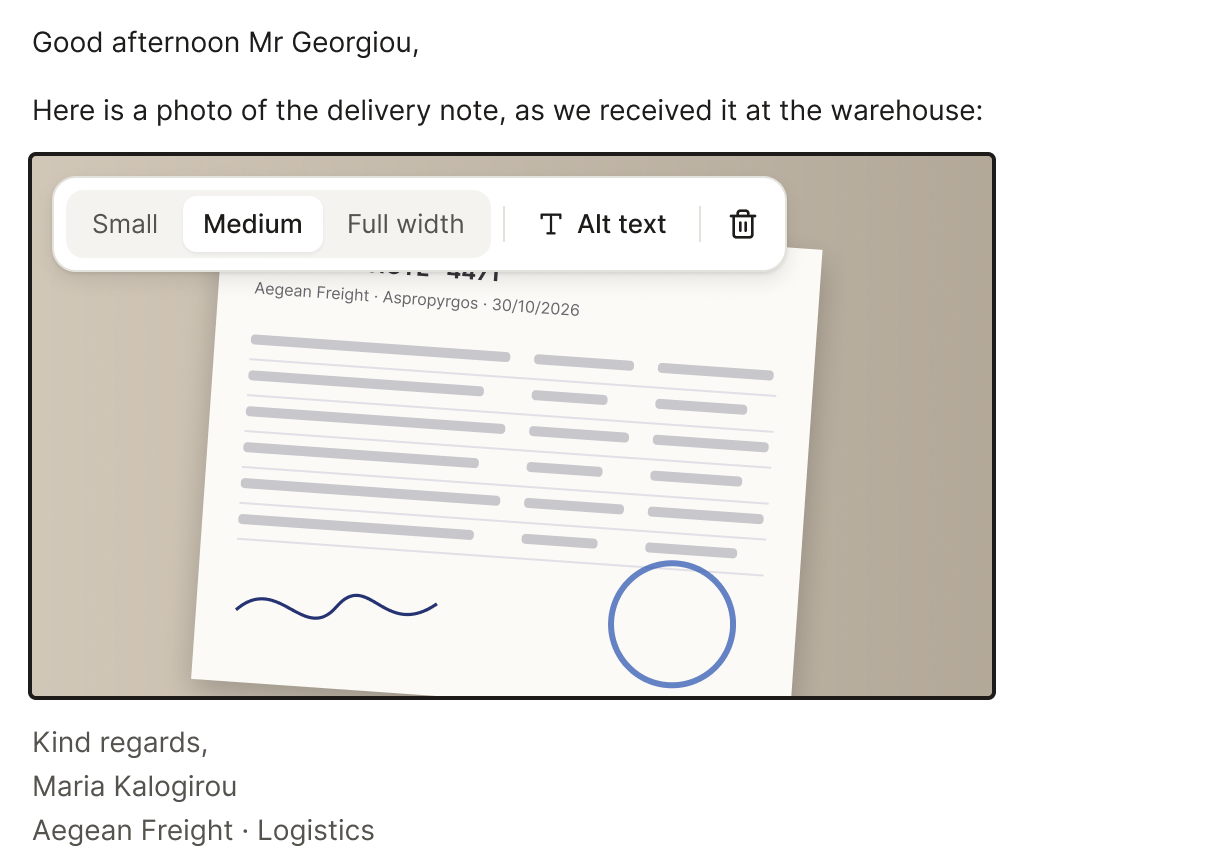
Select a picture to open its bar:
Small, Medium or Full width. Small is 240 px wide, Medium 480 px, and Full width is the picture’s own width, up to 600 px. A new picture starts at Medium, or at its own width if that is narrower. On a phone it never runs wider than the screen.
Alt text: a short description, read by screen readers and shown when the reader’s mail app has pictures turned off. It starts empty, because a file name like IMG_2041 describes nothing.
Remove image, or press Backspace or Delete. A removed picture isn’t sent, and Ctrl Z (⌘ Z on a Mac) brings it back while you are still writing.
With the keyboard, arrow onto a picture to select it, press Tab to reach its bar, and press Escape to carry on writing after it.
Made smaller on your device
Before a picture is uploaded, DMU Mail makes it smaller on your device, so the message stays light and arrives quickly: at most 1600 pixels on its longest side, and at most 1 MB. You can pick a picture of up to 25 MB.
PNG, JPG and GIF stay PNG, JPG and GIF. A GIF isn’t redrawn, so an animation keeps moving.
WebP becomes PNG or JPG, because Outlook for Windows can’t show WebP.
When a picture can’t go in
Two kinds of picture can’t go in the message. DMU Mail asks first and adds nothing until you choose: Attach instead sends it as an ordinary attachment, and Cancel leaves it out.
An animated GIF that is still over 1 MB. It can’t be made smaller without losing its animation.
A HEIC picture dragged or pasted on a computer. Most email apps can’t show HEIC, so attach it, or save it as JPG and add it again.
Attachments and virus checks
Pictures in the message aren’t listed with the attachments, but each one counts in the attachment meter: as one of the 25 files a message can carry, and toward its 25 MB.
Every picture is checked for viruses, like any attachment. While it is checked it shows Checking…, and Send waits. A picture that contains a threat can’t be sent: remove it to send the message.
When you write a draft together, the others see “Maria is adding an image…” until your picture has uploaded, and anyone in the draft can resize or remove it.
On phones and tablets
The Image button opens your photos: Photo Library, Take Photo or Choose File. An iPhone or iPad hands over a JPG, so HEIC is never a problem there.
Tap a picture for its options: Size, Alt text and Remove image.
Pasting a picture works. Dragging pictures in is for computers.
Replies and forwards
A reply or a forward keeps the pictures of the message it quotes, and the people you write to see them. Saved replies are text only for now, so they can’t hold pictures. Signature pictures are set in the signature itself: see Signatures.